Document 2 of 13
Features
Every module with its rules, with screenshots.
For whom: Management, department heads
This document describes what each Orafila module does and the rules it follows. The step-by-step procedures, with the exact names of buttons and fields, are in the user manual. Which modules a person sees depends on their role: see Roles and permissions.
Contents
- Structure of the application
- Sign-in and user security
- Dashboard
- Tickets
- Inbox and mail queues
- Customers and the 360° view
- Contracts, hour banks and ticket allowance
- Calendar
- Customer orders
- Invoices and receipts
- E-invoicing with Fatture in Cloud
- Suppliers and supplier orders
- Products and stock
- Order tracking
- Income and expenses
- Accounting
- Employees and absences
- Reports
- Assistant and help on every page
- Settings
- E-mail notifications and PDF documents
- Languages
1. Structure of the application
- Side menu: Dashboard, Tickets, Inbox and Customers appear to everyone (if the role does not allow them, the page explains this); the other sections appear only to people who can use them: Calendar; Sales (Customer orders, Invoices and receipts); Purchasing and stock (Suppliers, Supplier orders, Products and stock, Order tracking); Administration (Income and expenses, Accounting, Employees and absences, Reports); then Settings (administrators only) and Assistant.
- At the bottom of the menu: the person's name, Password and sessions, My absences (for people with an employee record), the language button (English / Italiano) and Sign out.
- Next to the menu items, a number flags the problems (red) and the things to check (orange) found by the automatic checks in that section.
- At the bottom right of every page, the “Help with this page” button opens the assistant beside the page.
- Each company sees only its own data; several companies can work in one installation, each with its own company code.
2. Sign-in and user security
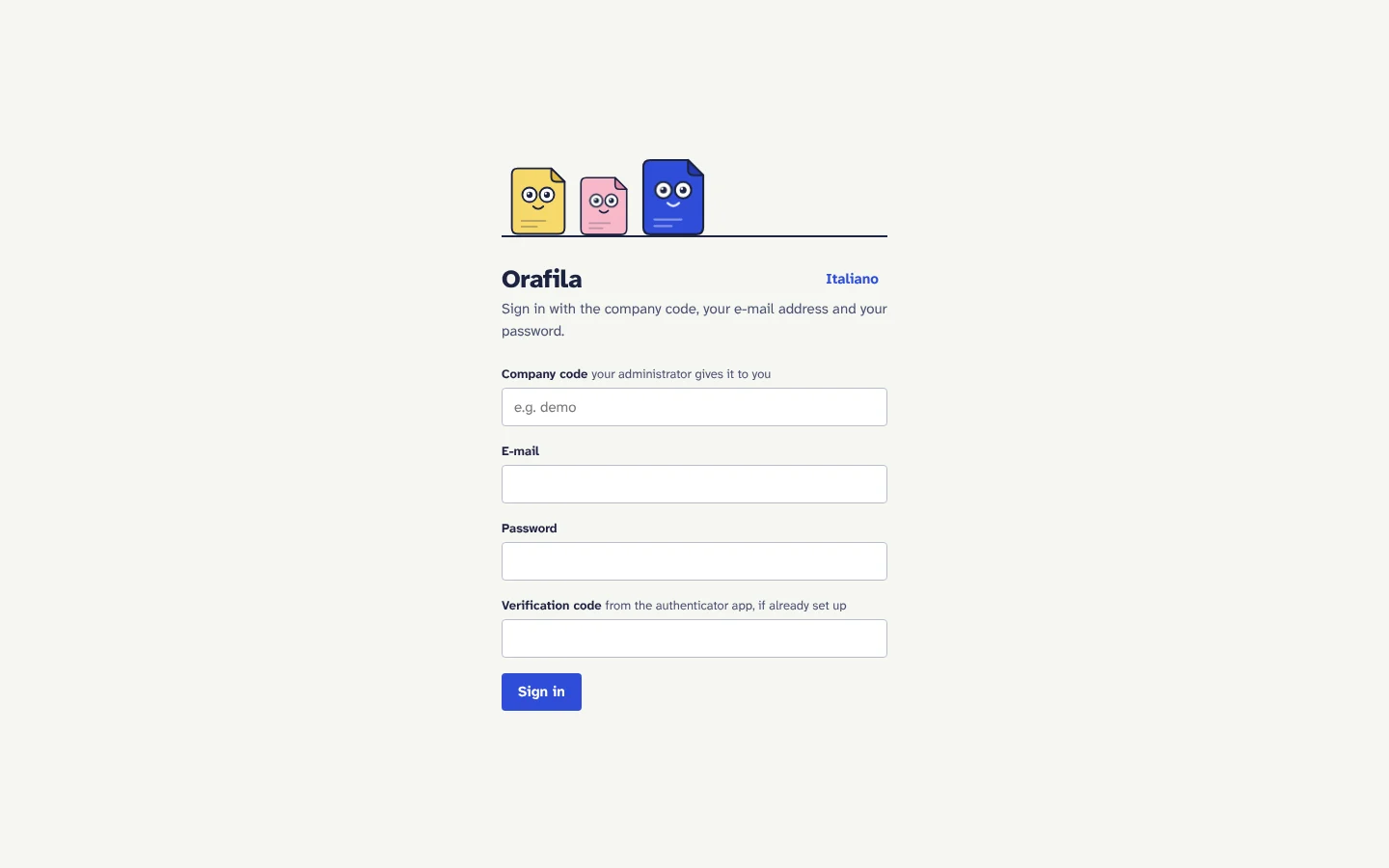
- Sign-in with company code, e-mail and password. The password has at least 12 characters.
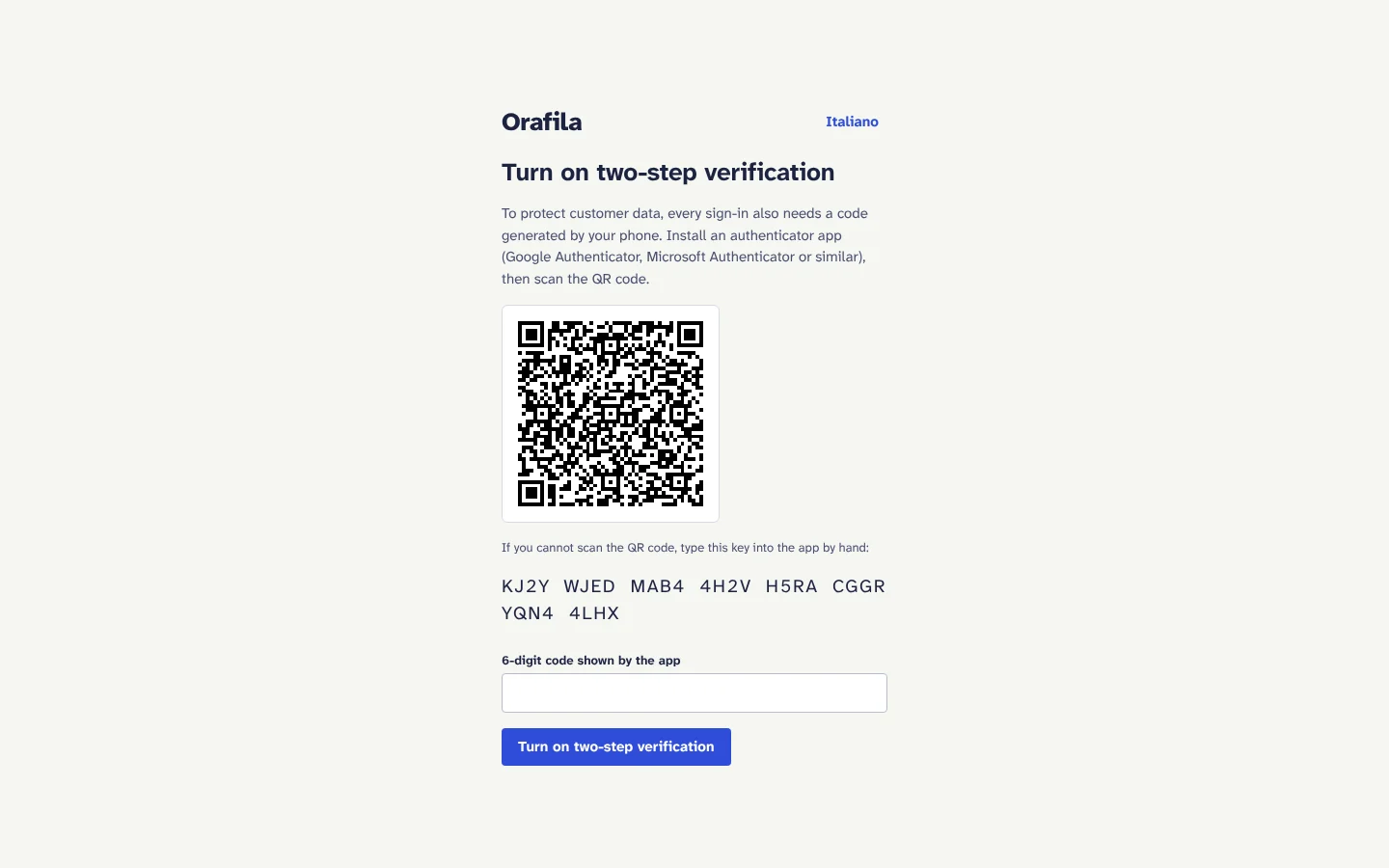
- Two-step verification, mandatory for everyone (TOTP, with Google Authenticator, Microsoft Authenticator or similar apps), turned on at the first sign-in with a QR code generated by the application itself, without external services. Each code works only once.
- Protection against repeated attempts: after 5 wrong attempts (password or code) sign-in is locked for 15 minutes; the error message does not say which of company code, e-mail and password is wrong.
- Sessions of 12 hours, stored on the server. In Password and sessions everyone changes their own password (after confirming the current one), sees which devices they are signed in on (device, date, IP address, expiry) and can sign out of all other devices. Changing the password closes the other sessions.
- Invitations: an administrator invites colleagues with a personal link, valid for 7 days and usable once; the person chooses a password and turns on two-step verification. The link is copied and passed on through a secure channel (Orafila does not send it by e-mail).
- Forgotten password: there is no automatic recovery by e-mail, as a security choice. An administrator resets the access and creates a new invitation. In the same way an administrator resets two-step verification for someone who changes phone, and unlocks anyone who is locked out.
3. Dashboard
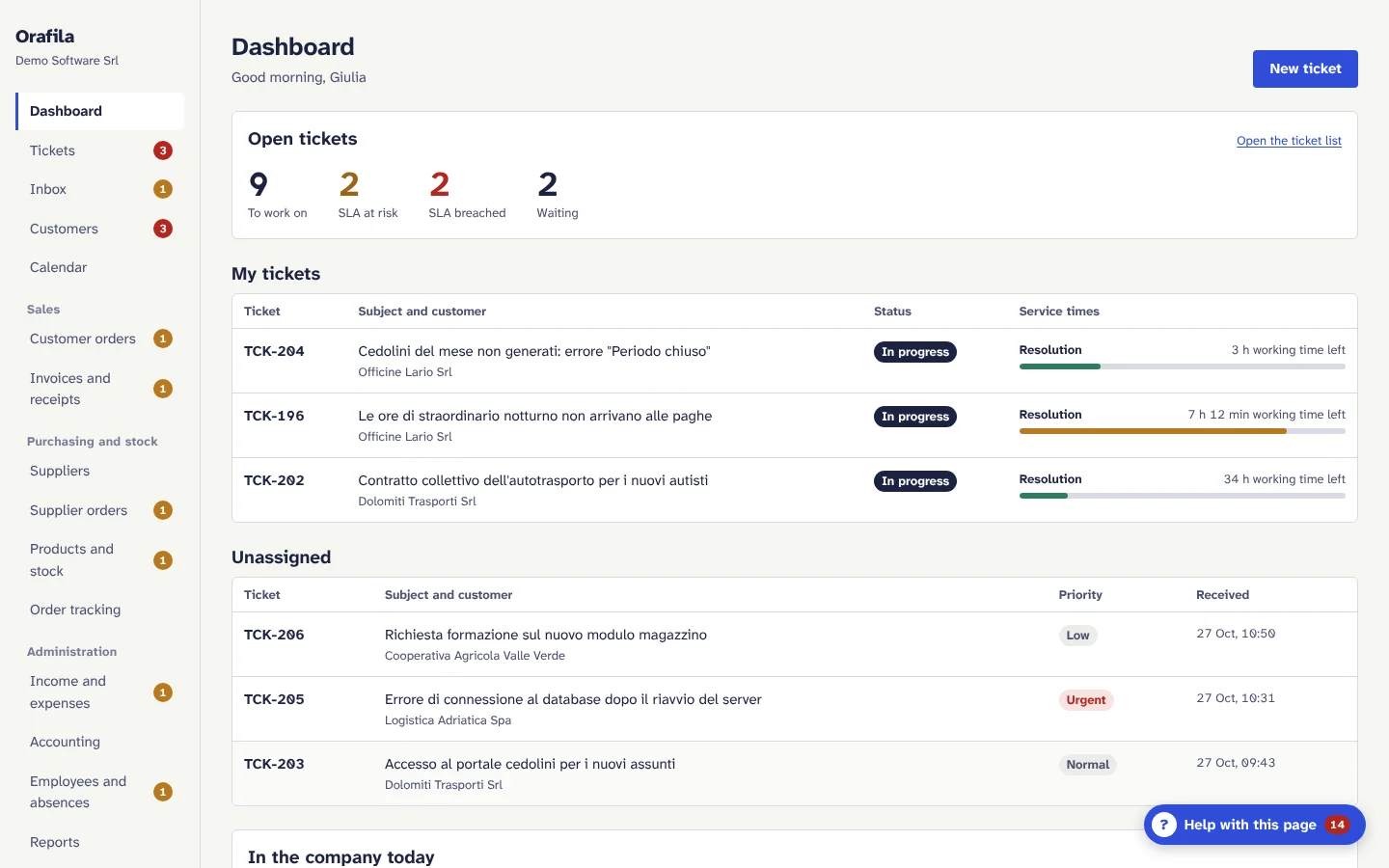
The home page says what needs doing today. The panels depend on the role:
- Open tickets: to work on, service times at risk, breached, waiting.
- My tickets, the most urgent at the top, with the service time bar.
- Unassigned: tickets without an agent.
- Customers to follow up: hour bank or ticket credits running out, cancellation deadlines within 60 days, cancellations to win back.
- In the company today: customer orders that are late or waiting to ship, late supplier orders, overdue invoices and invoices to collect, products to reorder, absence requests and people who are away, each with the link to the page where you act.
- AI assistant: the status of the AI and, for administrators, the month's AI spend against the budget.
4. Tickets
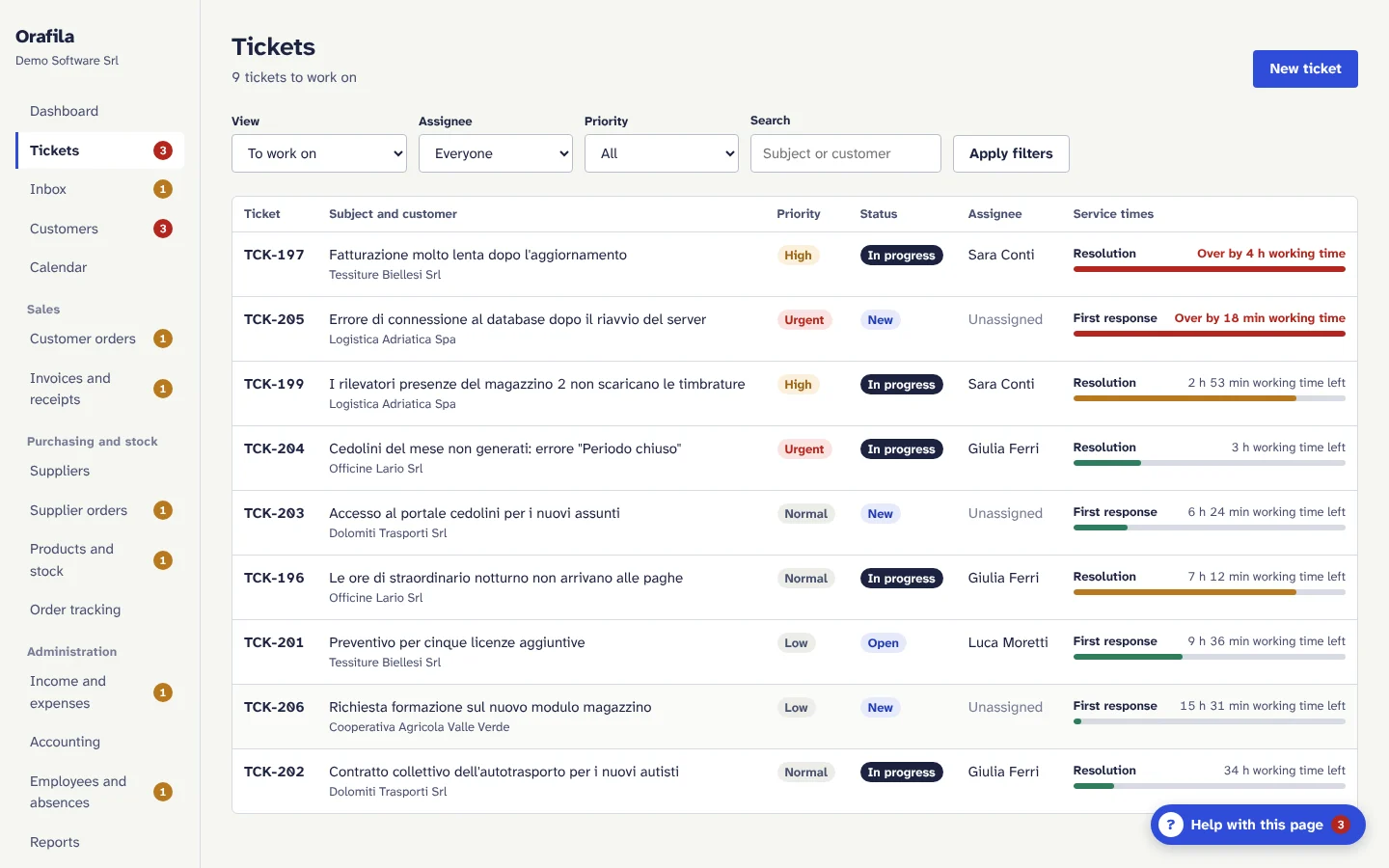
Support requests, received by e-mail or logged over the phone.
List
- Views To work on, Waiting, Resolved and closed, All; filters by assignee and priority; search by subject or customer.
- Open tickets are sorted by urgency: first those past their time limit, then those close to it.
Details
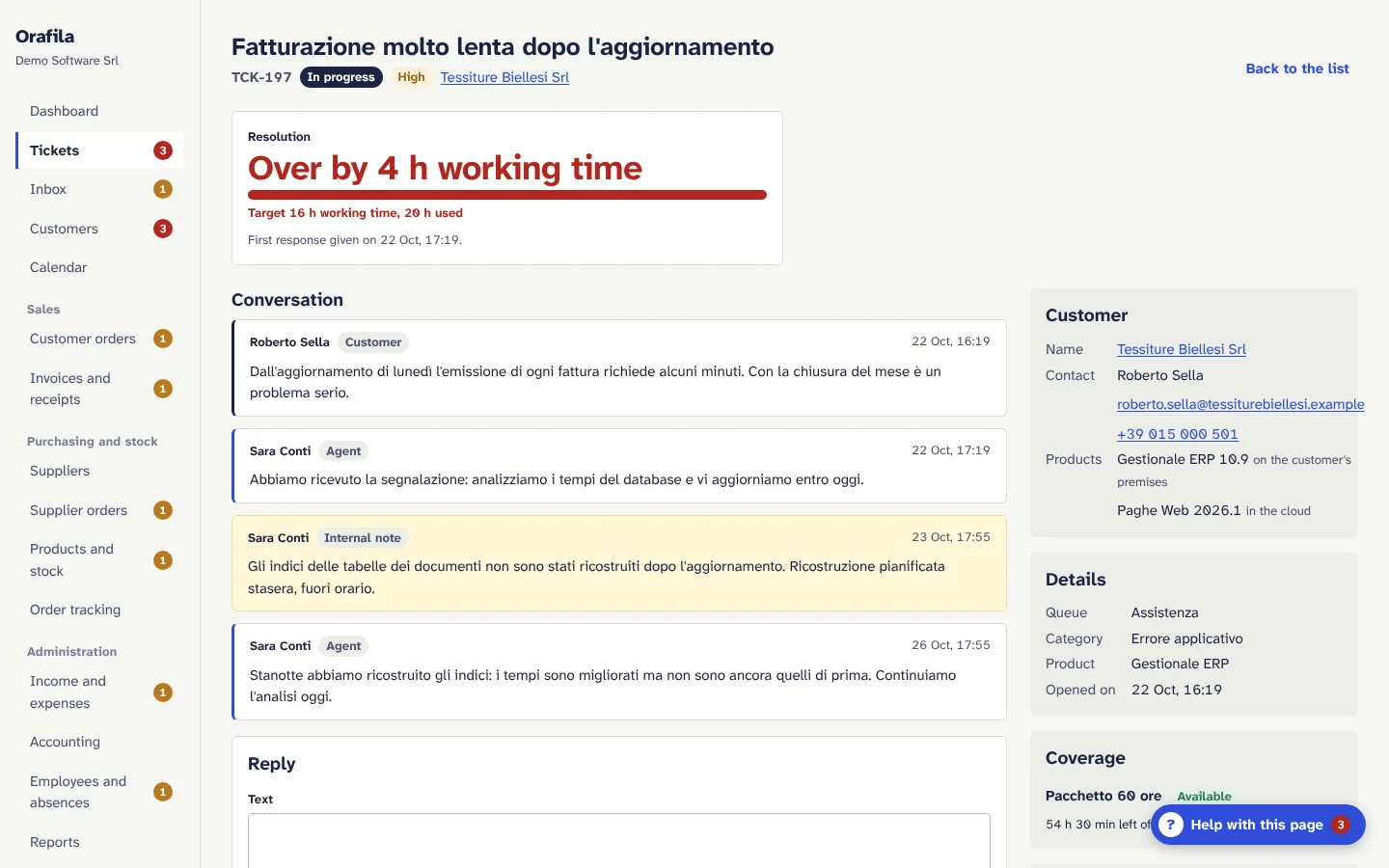
- Conversation with the customer and internal notes (never sent to the customer; the database itself prevents an internal note from being visible to the customer).
- Reply to the customer by e-mail from the queue's mailbox; the status of each sending (being sent, sent, failed with the reason) is shown under the message. If the queue has no mailbox that can send, the reply stays in the history and the page says so.
- Reply draft with AI: you read it through, correct it and send it with one click; on its own it is neither saved nor sent.
- AI triage: suggested category, priority, product, agent (based on each agent's skills and open tickets), information to ask for and possible duplicates, applied with one click.
- Numbering: a single sequence for the company, with the queue's prefix (for example TCK-1042).
Statuses and rules
- Statuses: New, Open, In progress, Waiting for customer, Waiting for third party, Resolved, Closed. The allowed changes are fixed (for example a Resolved ticket goes back to In progress or is closed).
- To work on a ticket it needs an assignee; “Take ticket” assigns it to yourself.
- To resolve a ticket you need the description of the solution, which can be sent to the customer.
- To close a ticket that was never worked on (spam, duplicate) you need the reason.
- A closed ticket can be reopened only within the number of days set by the company (15 unless changed); after that, a new ticket is opened.
Service times (SLA)
- First response and resolution targets by priority (Urgent, High, Normal, Low), in working hours.
- The working calendar is Monday to Friday, 9:00-13:00 and 14:00-18:00 (Italian time), excluding Italian national holidays (including Easter Monday and St Francis on 4 October from 2026) and the company closures set by the company.
- The resolution clock stops in the “Waiting for customer” status.
- Service time status: within limits, at risk (over 80% of the time used), breached, met.
- Default values (first response / resolution): Urgent 0.5 h / 4 h, High 2 h / 16 h, Normal 8 h / 40 h, Low 16 h / 80 h. They are changed in Settings › Company.
Time worked and charging
- You log minutes worked (from 1 to 1440) and travel minutes, billable or not.
- Billable time is deducted from the customer's valid hour bank that expires first, with the company's rounding up and minimum charge per job (15 minutes by default), and travel charged or not according to the rules.
- Time entries cannot be edited or deleted: they stay as a record.
- Weight on the ticket allowance (from 0 to 50): how many credits the ticket uses. A weight of 0 only with a reason (for example a software bug).
- Ticket economics (for people who see reports): internal cost (minutes × the agent's hourly cost) compared with revenue (billable minutes × rate), and the margin.
5. Inbox and mail queues
How e-mails become tickets
- Each queue (for example Support) has its own mailbox: Orafila reads it via IMAP and sends via SMTP. Alternatively, a mail gateway can forward e-mails to the application (see Integrations).
- The customer is recognised by the address of one of its contacts or by the e-mail domain registered on its record. Free webmail and PEC (certified e-mail) domains (gmail.com, libero.it, pec.it and the like) never identify a customer; an address or domain registered for two customers is not assigned.
- Replies go back into the right ticket thanks to the reference in square brackets in the subject (for example [TCK-1042]) or to the message identifiers, even if the customer changes the subject.
- Automatic replies ("out of office") and bulk e-mails marked as such (header
Precedence: bulkorlist) are discarded; e-mails from mailing lists get no acknowledgement of receipt; duplicate e-mails are recognised and imported only once. - The acknowledgement of receipt (optional, per queue) sends the customer the ticket number when an e-mail opens a new ticket.
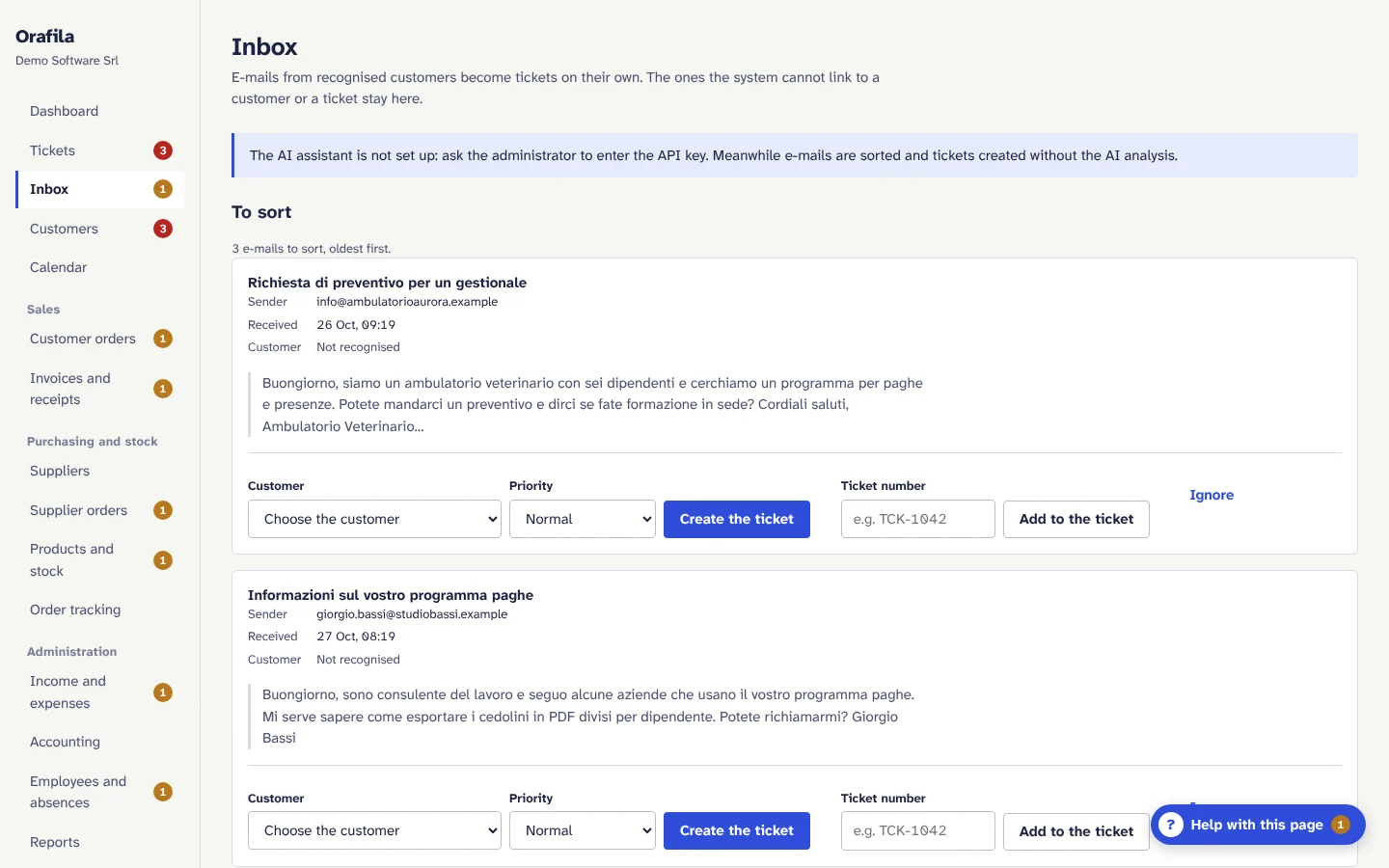
- E-mails that Orafila cannot link stay in Inbox and are never deleted: you create the ticket by choosing the customer, add them to an existing ticket or ignore them (they can be recovered).
- With AI turned on, every ticket opened from an e-mail immediately gets the triage suggestion, which the agent applies or not.
Reading the mailboxes
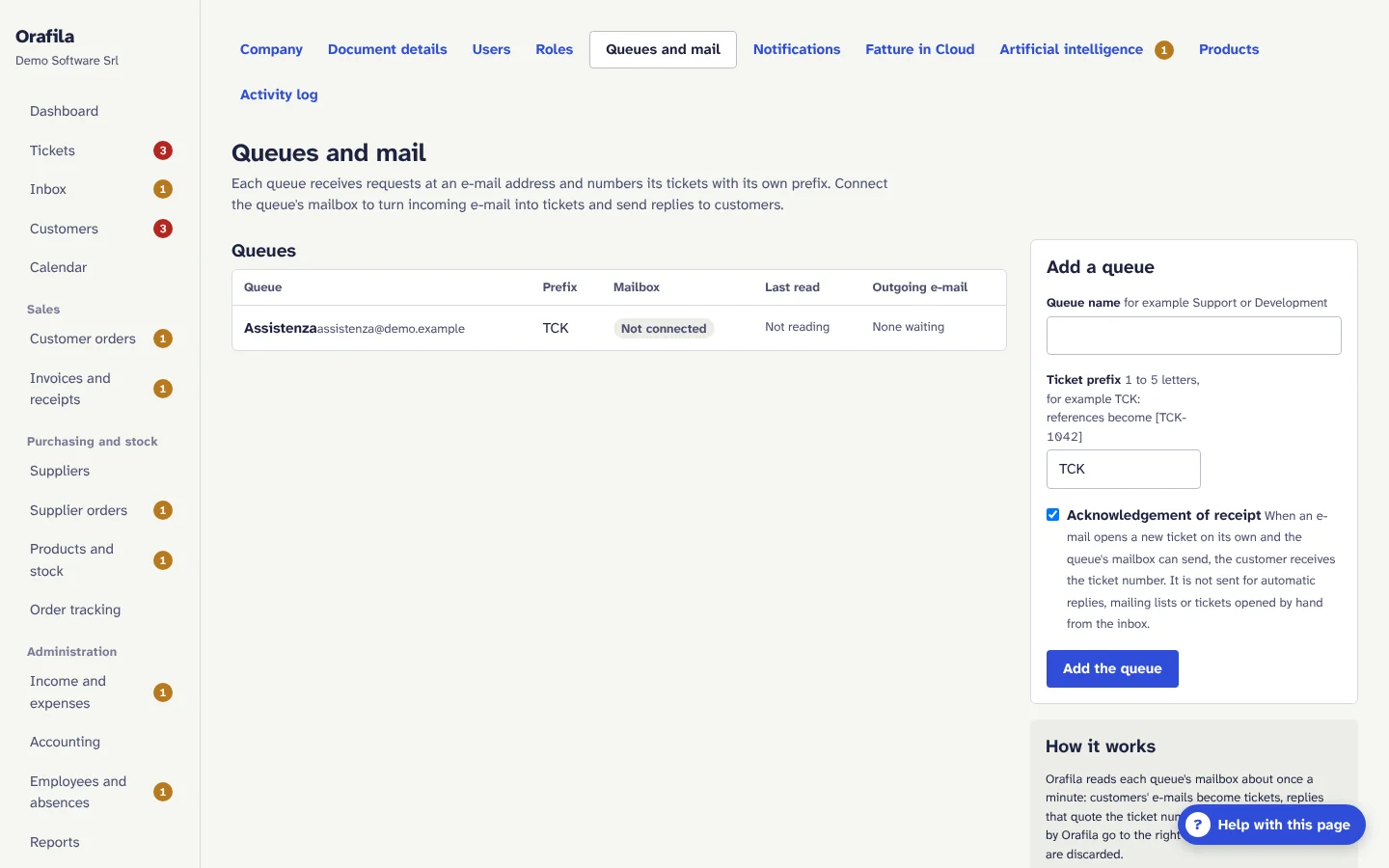
- The mail worker reads the mailboxes every minute (configurable on the server) and marks the imported e-mails as read: nothing is moved or deleted from the mailbox.
- The first time, it imports only the 50 most recent unread e-mails, so as not to open a ticket for every old e-mail.
- Attachments are not imported: the ticket shows the names of the attached files.
- E-mails that fail to go out are retried after 1, 5, 15 and 60 minutes; after that the Queues and mail page lists them with the reason.
- Protections: no connections to internal network addresses, encrypted connections only, mailbox passwords encrypted, no loops of automatic replies between systems.
6. Customers and the 360° view
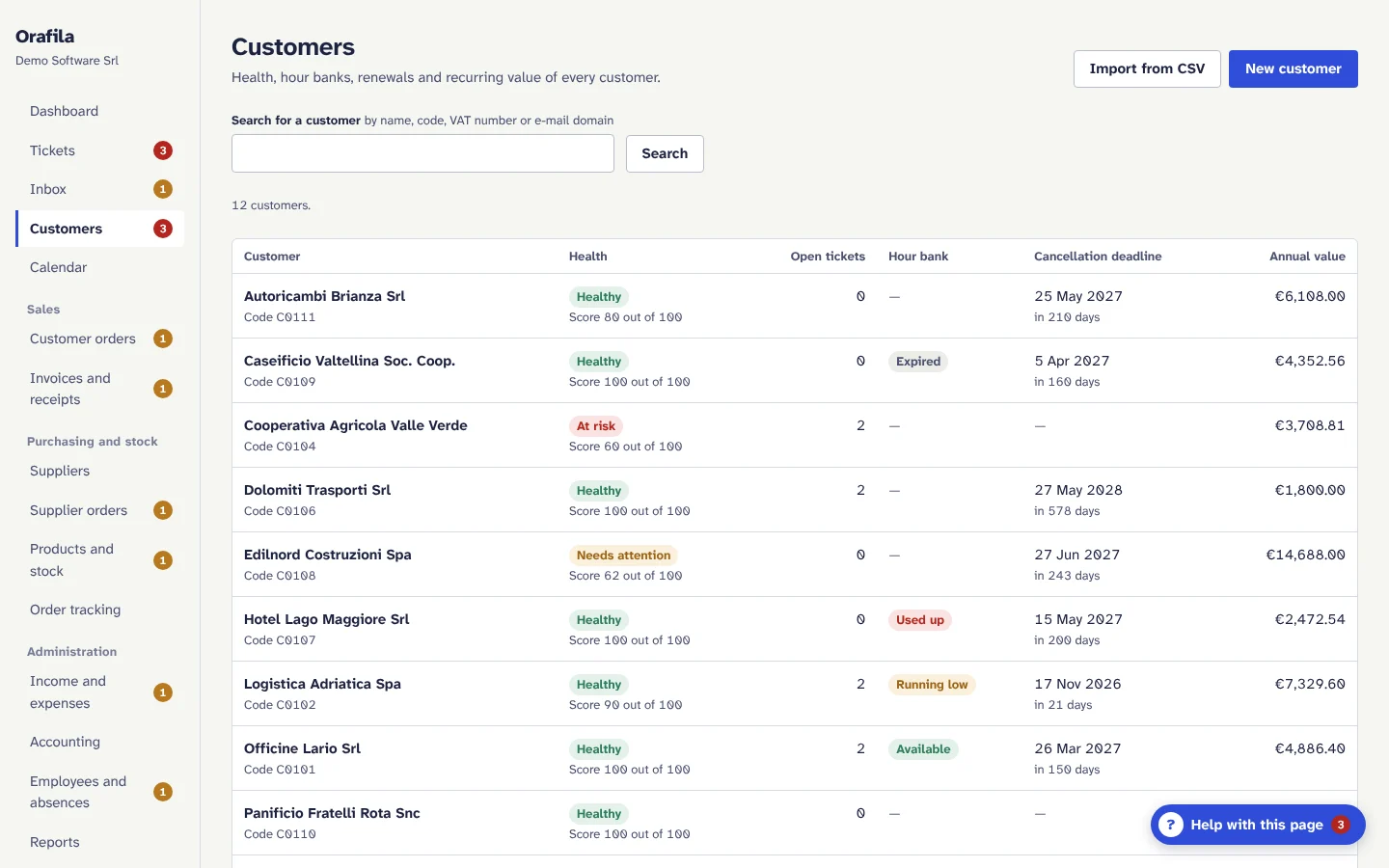
Customer record
- Company name, customer code, VAT number (with check digit validation), codice fiscale (tax code), PEC, SDI recipient code (SDI: Sistema di Interscambio, the Italian e-invoicing exchange), e-mail domains, account manager, parent company.
- Contacts with e-mail, phone, job title and “Contact person for” (e-mails from a contact open tickets on the customer's behalf); sites with address.
- Installed products with version, installation type (at the customer's premises, in the cloud...) and site.
360° view
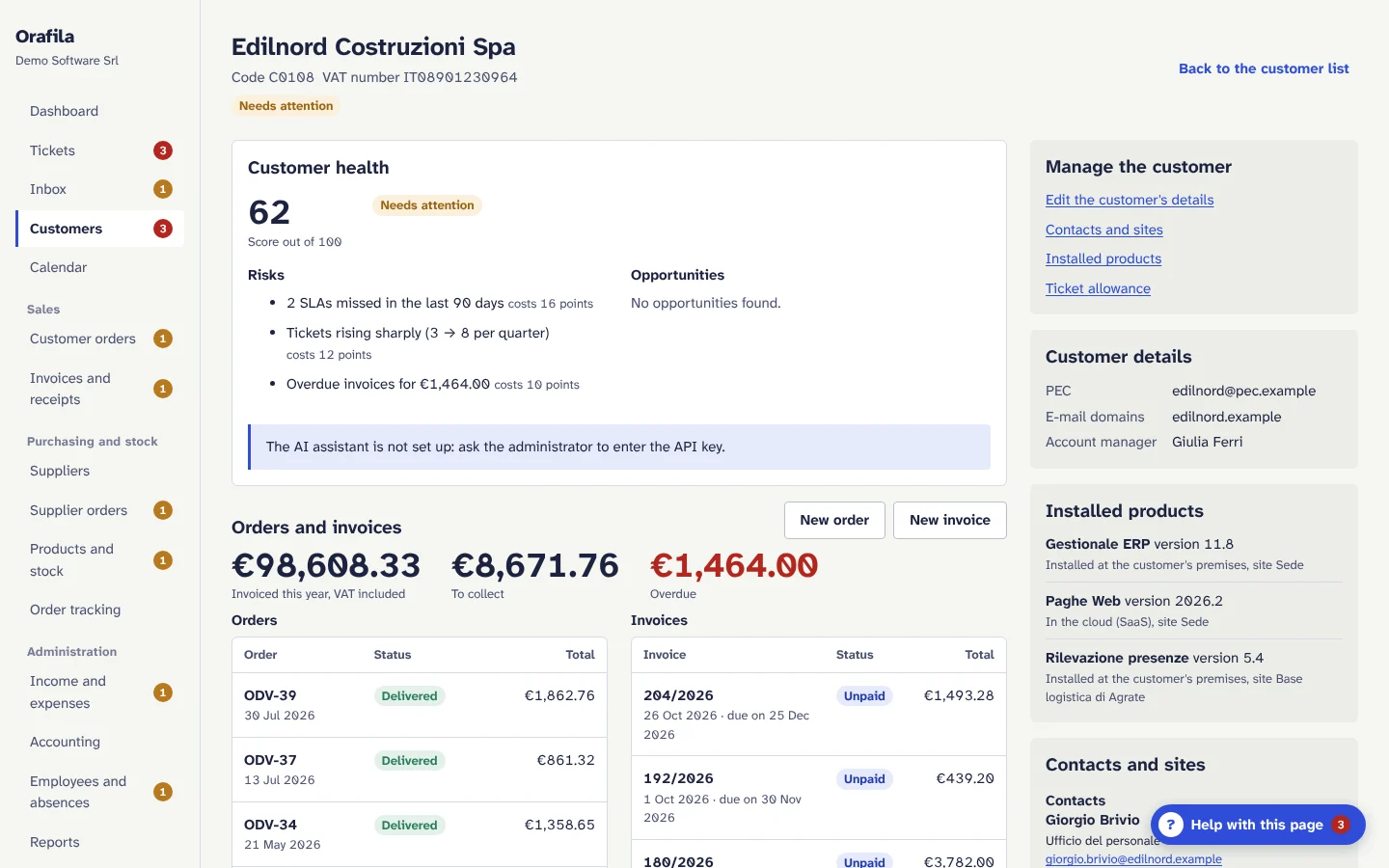
- Customer health: a score from 0 to 100 with the risks and their weight in points (missed service times, rising tickets, overdue invoices, no recent contact, cancellation deadline close...) and the opportunities (hour bank top-up, renewal meeting). Levels: Healthy (75 and above), Needs attention (50 to 74), At risk (below 50, or cancellation received).
- AI briefing: a summary of the situation and up to 4 recommended actions, each with the department responsible; it is a suggestion and is not saved.
- Contracts, hour banks, ticket allowance, latest tickets, products, contacts.
- The customer's orders and invoices: latest orders and invoices with their status, amount invoiced this year, to collect and overdue; new order or new invoice with the customer already chosen.
Importing from Excel or CSV
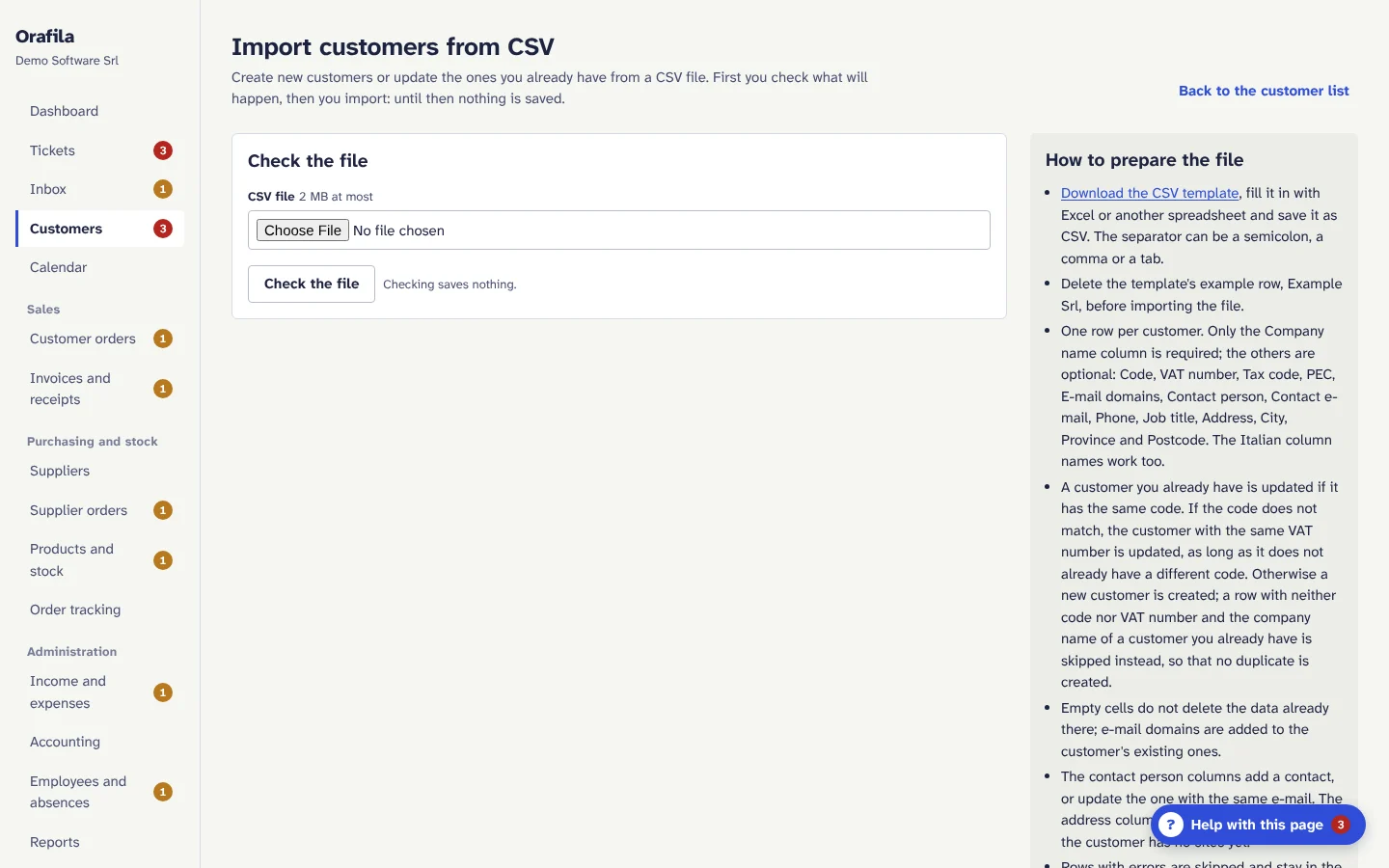
- Downloadable CSV template; the file exported from Excel can also be imported (comma, semicolon or tab separator, Windows encoding too).
- Files up to 2 MB and 5,000 rows; recognised columns: Code, Company name (required), VAT number, Tax code, PEC, E-mail domains, Contact person, Contact e-mail, Phone, Job title, Address, City, Province, Postcode.
- Check before importing: row-by-row preview (New, Update, Not imported with the reason), without saving anything.
- The import is all or nothing; existing customers are updated by code or VAT number, and empty cells do not delete any data.
7. Contracts, hour banks and ticket allowance
Contracts
- Number, start date, initial term, automatic renewal yes/no, length of each renewal, cancellation notice, annual value, billing frequency (monthly, quarterly, half-yearly, yearly), annual adjustment (for example ISTAT, the Italian inflation index).
- The contract page shows the current period, the cancellation deadline and the first expected invoices.
- Alerts: cancellation deadline within 90 days, within 30 days, passed.
- Cancellation: date received, reason, competitor if any; Orafila works out when it takes effect (at the end of the current period if it arrives within the deadline, otherwise at the end of the following period, with automatic renewal). You then follow the win-back outcome (in progress, won back, lost).
Hour banks
- Hours purchased (also 12.5 or 1:30), validity, warning threshold, linked contract.
- Top-ups and corrections with the reason; movements cannot be deleted, a mistake is corrected with an opposite movement.
- Statuses: Available, Running low, Used up (with the overrun), Expired; forecast of the date it runs out based on recent usage.
Ticket allowance
- Per year: credits = annual support fee divided by the value of one credit, rounded up, plus the extra credits purchased.
- Warning threshold and rules: unlimited tickets for the plans that include them, charging for tickets beyond the credits.
8. Calendar
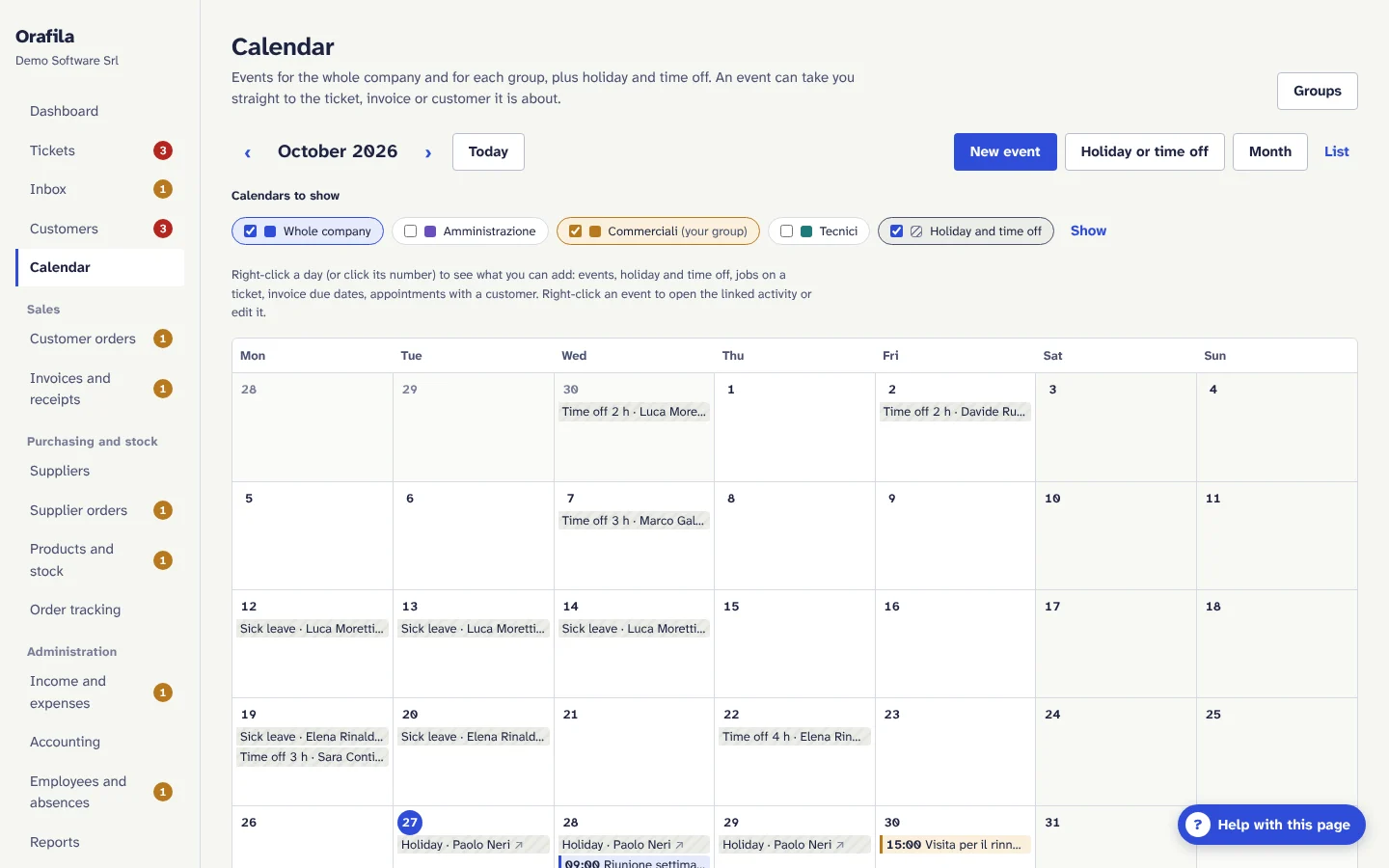
- A calendar for the whole company and one for each group (for example Technicians, Sales), each with its own colour; everyone chooses which to show.
- People's holiday and time off appear on the calendar: people who can see employees and absences see the type; the others see only “Away” for colleagues, without the reason.
- All-day, timed or multi-day events, which can be linked to a ticket, an invoice or a customer, with a direct link to their page (only for people who can see that module).
- Right-click on a day (or click its number, also from the keyboard and on a phone): new event, holiday, time off, job on a ticket, invoice due date, appointment with a customer, new ticket or new invoice for that day.
- Everyone sees every group's calendar; each person writes in the company calendar and in their own groups' calendars; administrators write in all of them and create the groups.
- List view, handy on a phone.
9. Customer orders
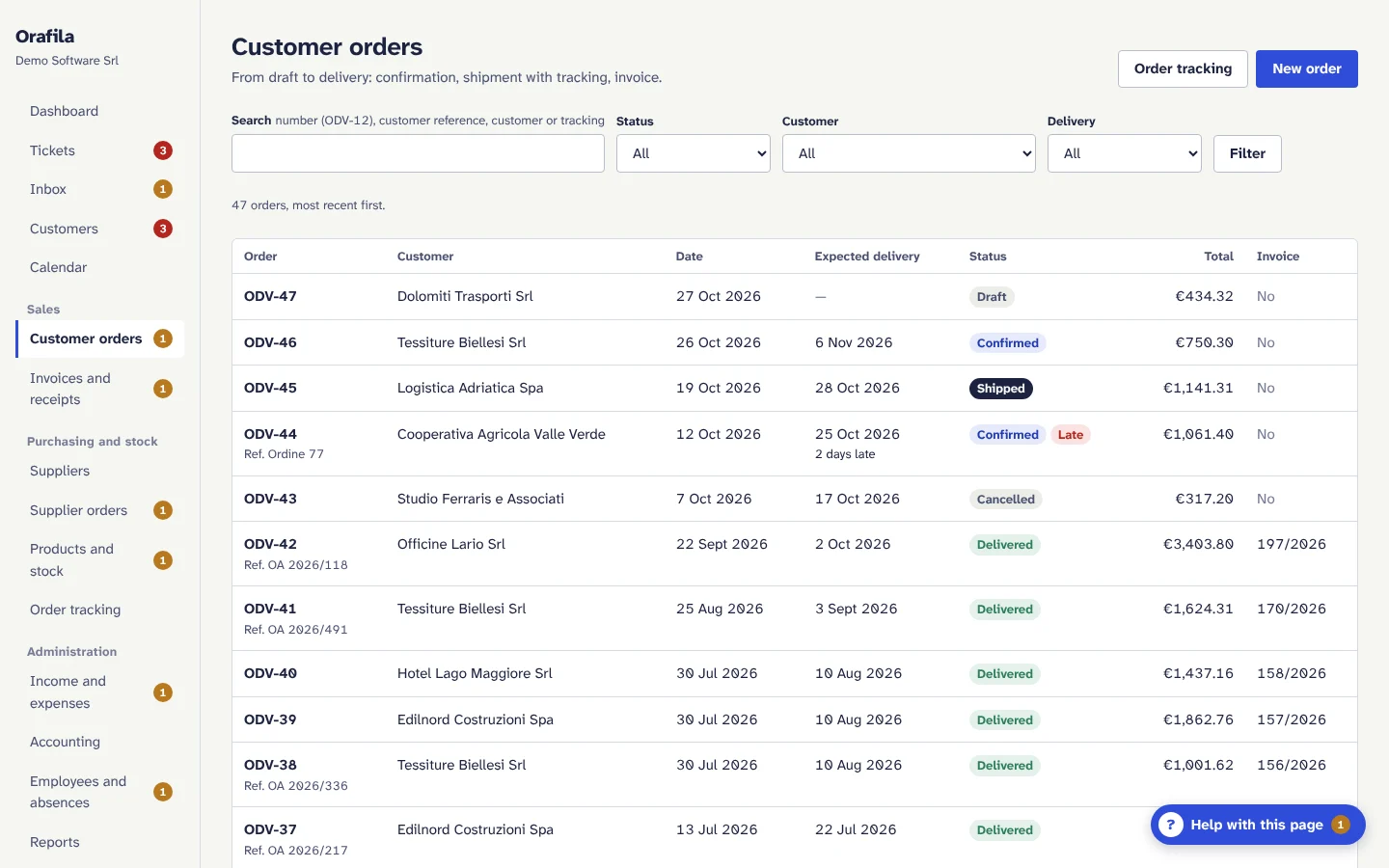
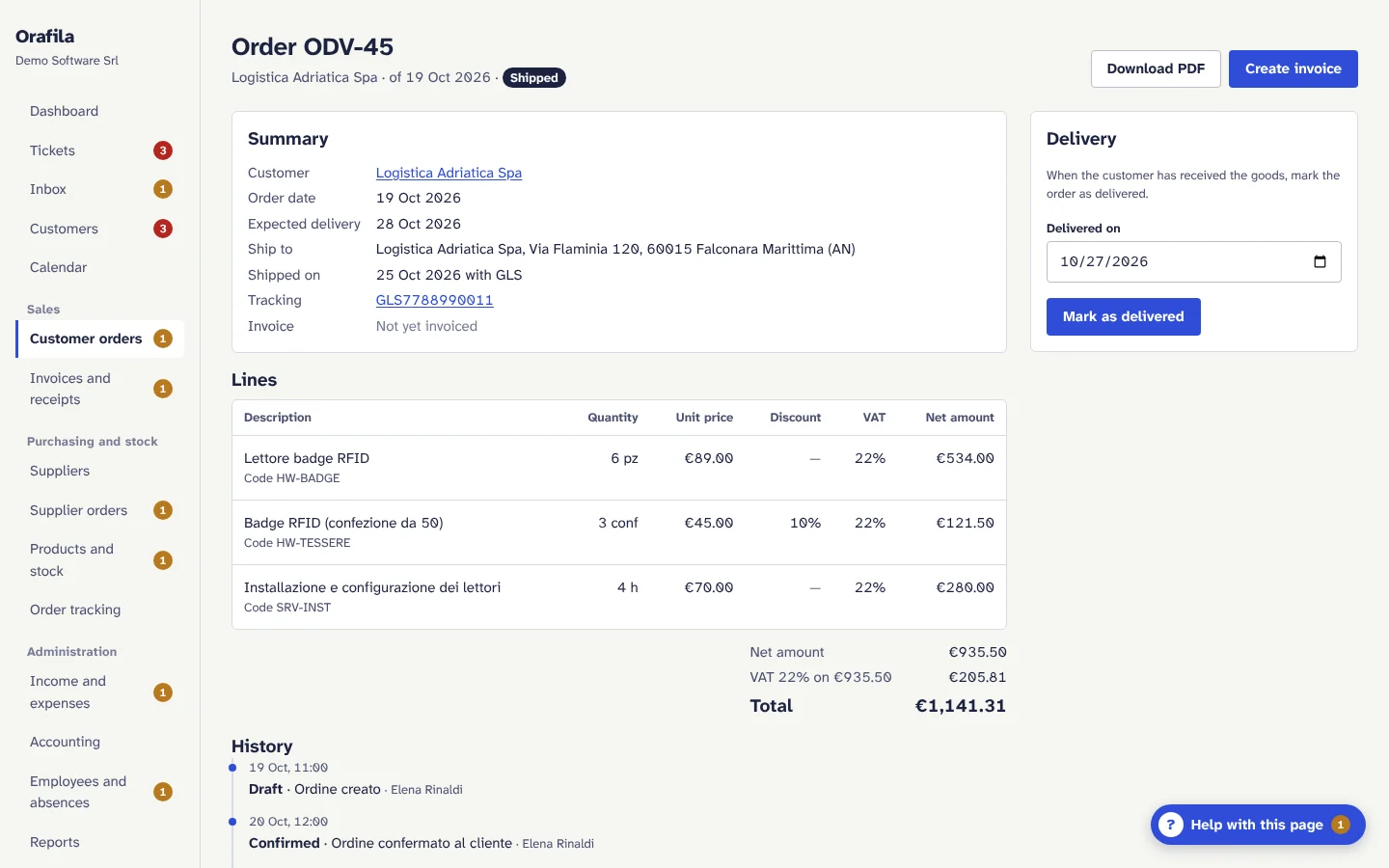
- Numbering ODV-1, ODV-2...; statuses Draft, Confirmed, Shipped, Delivered, Cancelled.
- Lines with a product (which suggests description, price and VAT) or free lines; quantity, price, discount, VAT; totals updated as you type; stock availability for each line.
- Confirmation, optionally sending the PDF to the customer by e-mail; once confirmed, the order can no longer be changed.
- Shipment with date, carrier, tracking code and link: it takes the goods out of stock (it is not recorded if there is not enough stock) and can notify the customer by e-mail.
- Delivery, cancellation with a reason (not after shipment), history of every step.
- “Create invoice”: the invoice starts with the order's customer and lines; an order is invoiced only once.
10. Invoices and receipts
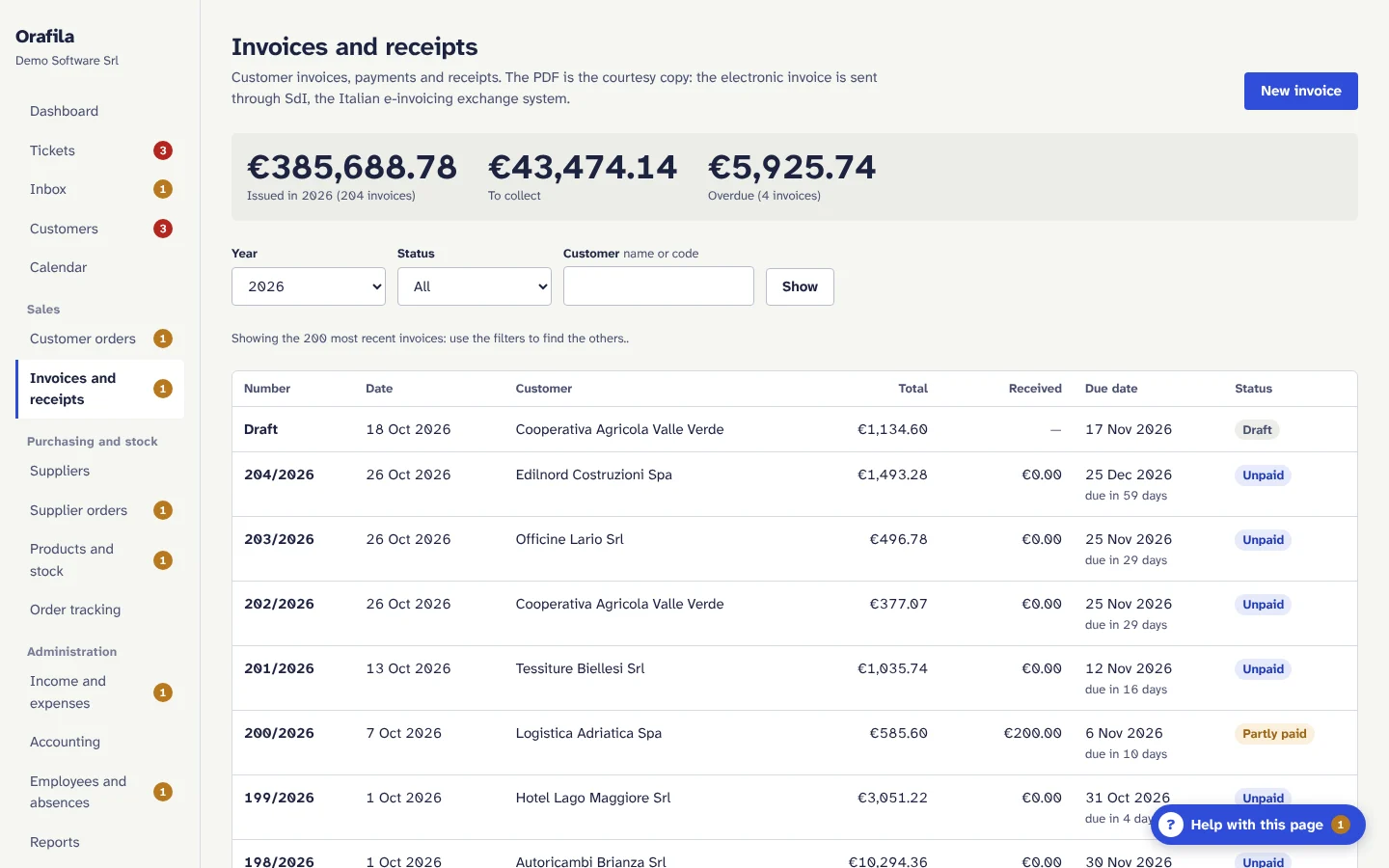
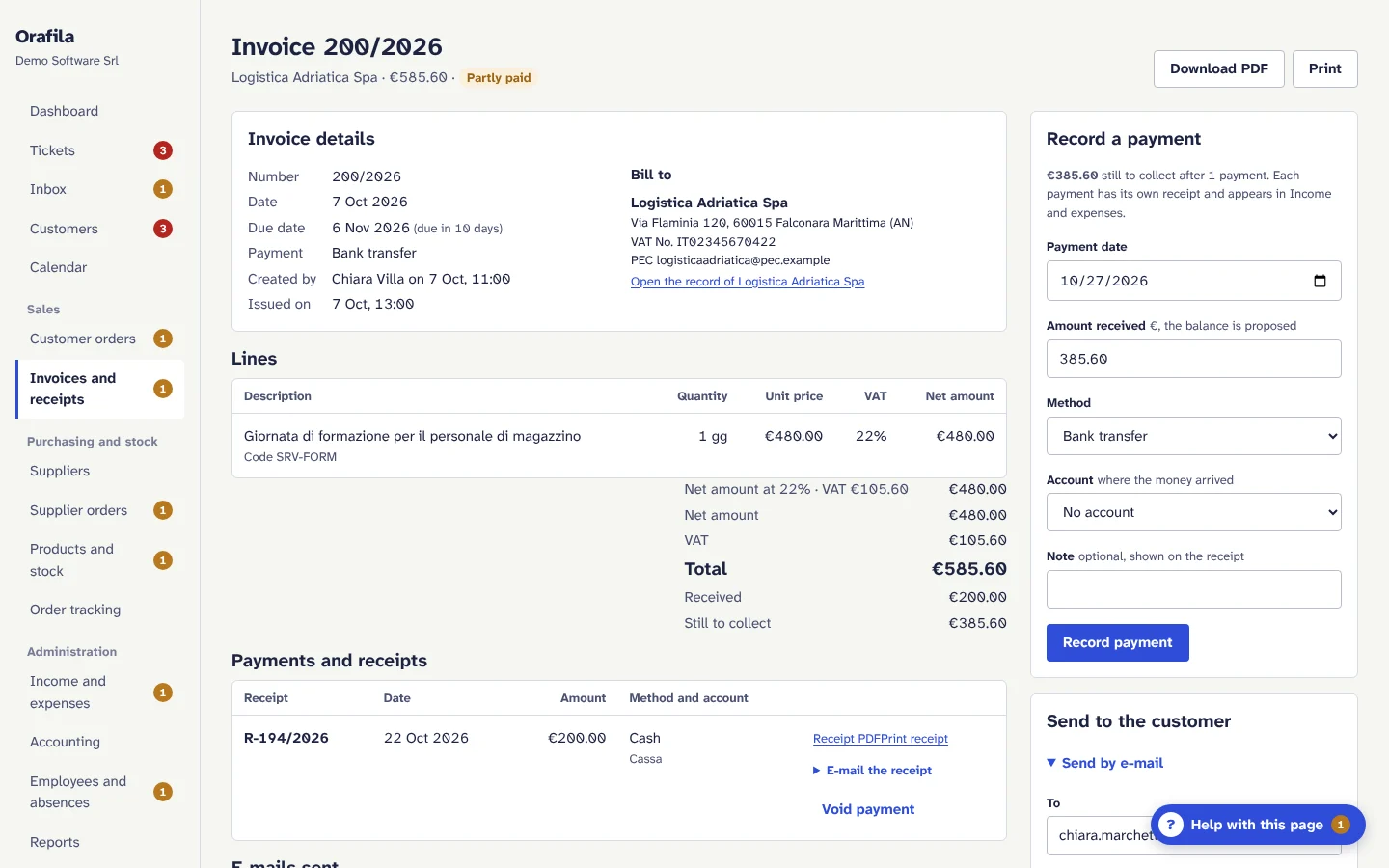
- Invoices from scratch or from an order; billing details taken from the customer's record (company name, VAT number, tax code, address, PEC, SDI recipient code) and editable for the individual invoice.
- Issue: the invoice gets the next number of its year (for example 12/2026), with no gaps, and from then on it can no longer be changed. The date cannot be in the future or earlier than the last invoice issued in the same year. The customer's billing details stay fixed at issue.
- VAT by rate, calculated on the total of each rate, with commercial rounding; amounts handled to the cent with no floating-point errors.
- Payments, partial or in full, with the numbered receipt (R-1/2026...), the amount also in words, and the entry in Income and expenses. A wrong payment is voided with the reason: the receipt stays on record as voided and the numbering has no gaps.
- Printing, PDF and sending by e-mail of the invoice, the receipt and the payment reminder for overdue invoices; for each e-mail you see when it went out or why it did not.
- Cancellation of an invoice with no payments, with the reason; the number stays used.
- Payment methods: bank transfer, cash, card, direct debit (SDD), other. With bank transfer the invoice shows the IBAN and the payment reference.
- The PDF is the courtesy copy: the invoice that counts for tax purposes is the electronic one sent to the SDI (Sistema di Interscambio).
11. E-invoicing with Fatture in Cloud
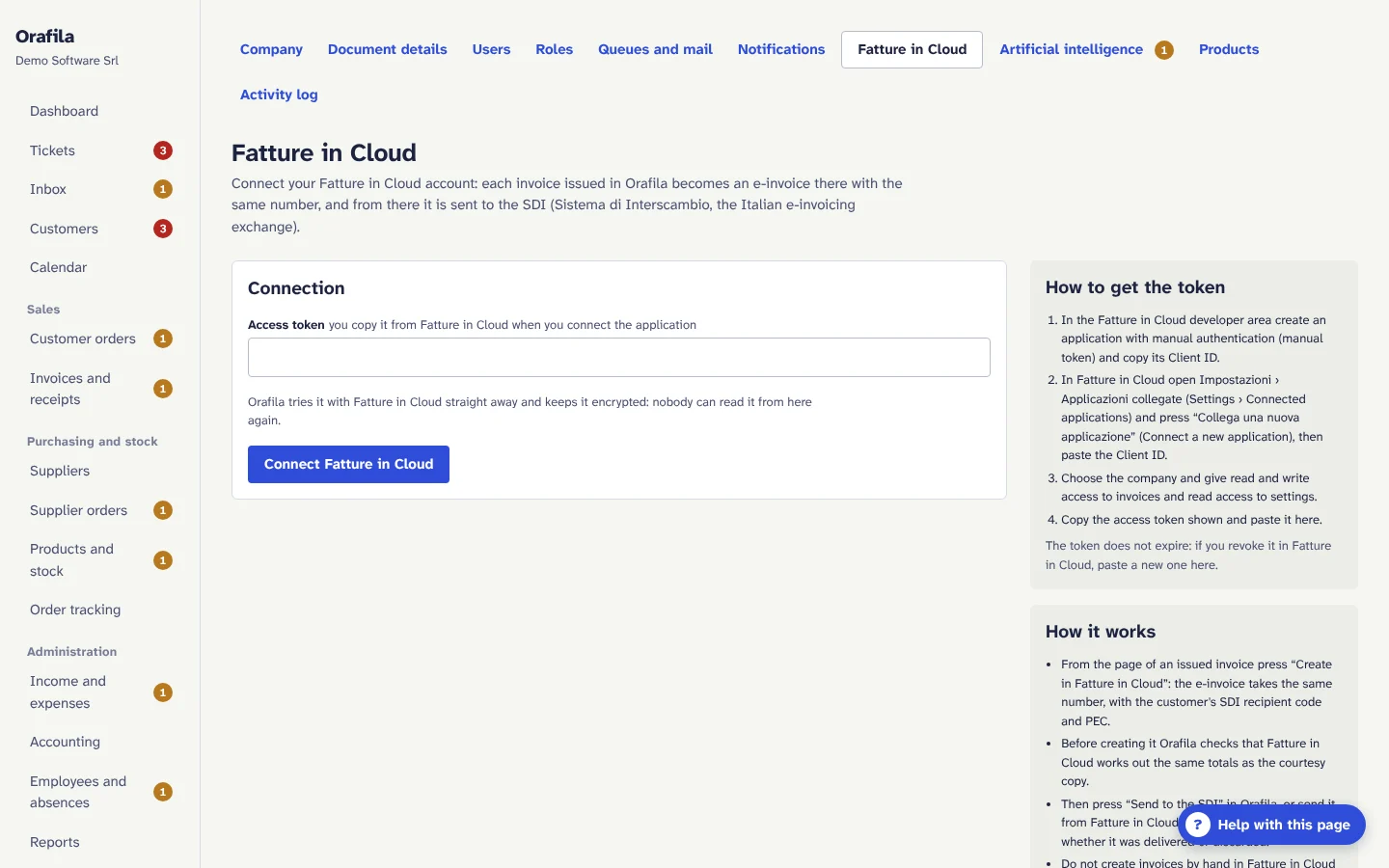
- Connection with a Fatture in Cloud token, stored encrypted and never shown again.
- Each issued invoice is created in Fatture in Cloud as an e-invoice with the same number, the same customer details and the same lines, also automatically on issue. Before creating it, Orafila checks that Fatture in Cloud works out the same totals.
- Sending to the SDI from Orafila, with the XML file checked; status updated (delivered, in the cassetto fiscale, i.e. the online tax area, or discarded with the reason) and sending again after correction.
- Options: company in Fatture in Cloud, numbering with a sezionale (numbering series, for example /PSA), natura (VAT exemption code) for lines with 0% VAT (for example N2.2), code for the “Other” payment.
- Without a recipient code the invoice goes out with 0000000: the SDI delivers it to the channel the customer has registered or to their cassetto fiscale.
12. Suppliers and supplier orders
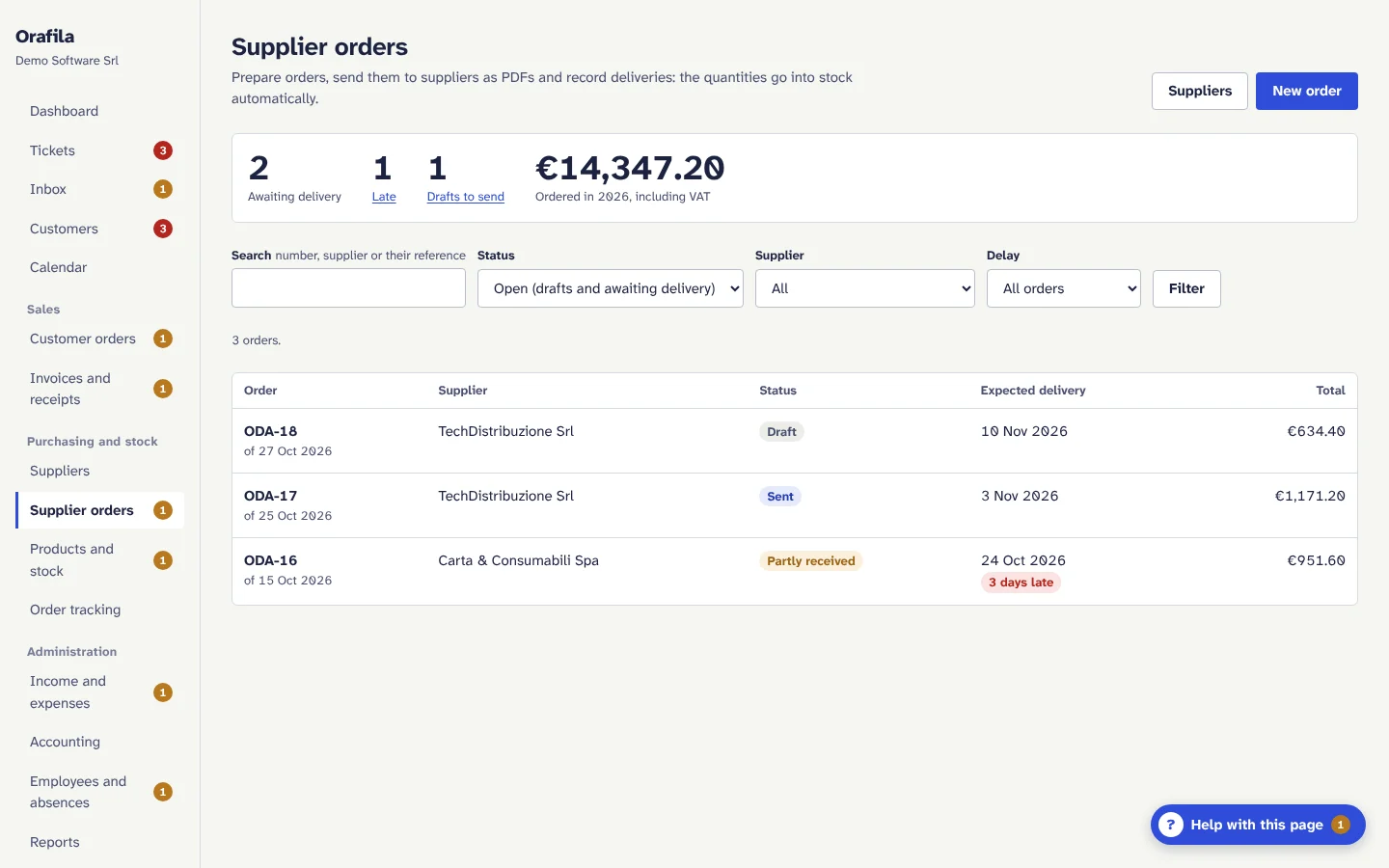
Suppliers
- Company name, code (unique), VAT number and IBAN with validation (warnings that do not block), e-mail for orders, address, payment terms in days.
- The supplier page shows open orders, the amount ordered this year, the products it is the usual supplier of, and recorded expenses.
- Deactivation instead of deletion for suppliers already in use.
Supplier orders
- Numbering ODA-1, ODA-2...; statuses Draft, Sent, Partly received, Received, Cancelled.
- The PDF is sent by e-mail to the supplier; once sent, lines and prices do not change.
- Goods received, even in several deliveries: lines with products tracked in stock add to the stock on hand at the line's purchase price; you cannot record more items than were ordered.
- Cancellation with a reason as long as nothing has arrived.
- Supplier invoice recorded in Income and expenses, linked to the order, with the due date based on the supplier's terms.
- Orders late against the expected delivery, with a dedicated filter.
13. Products and stock
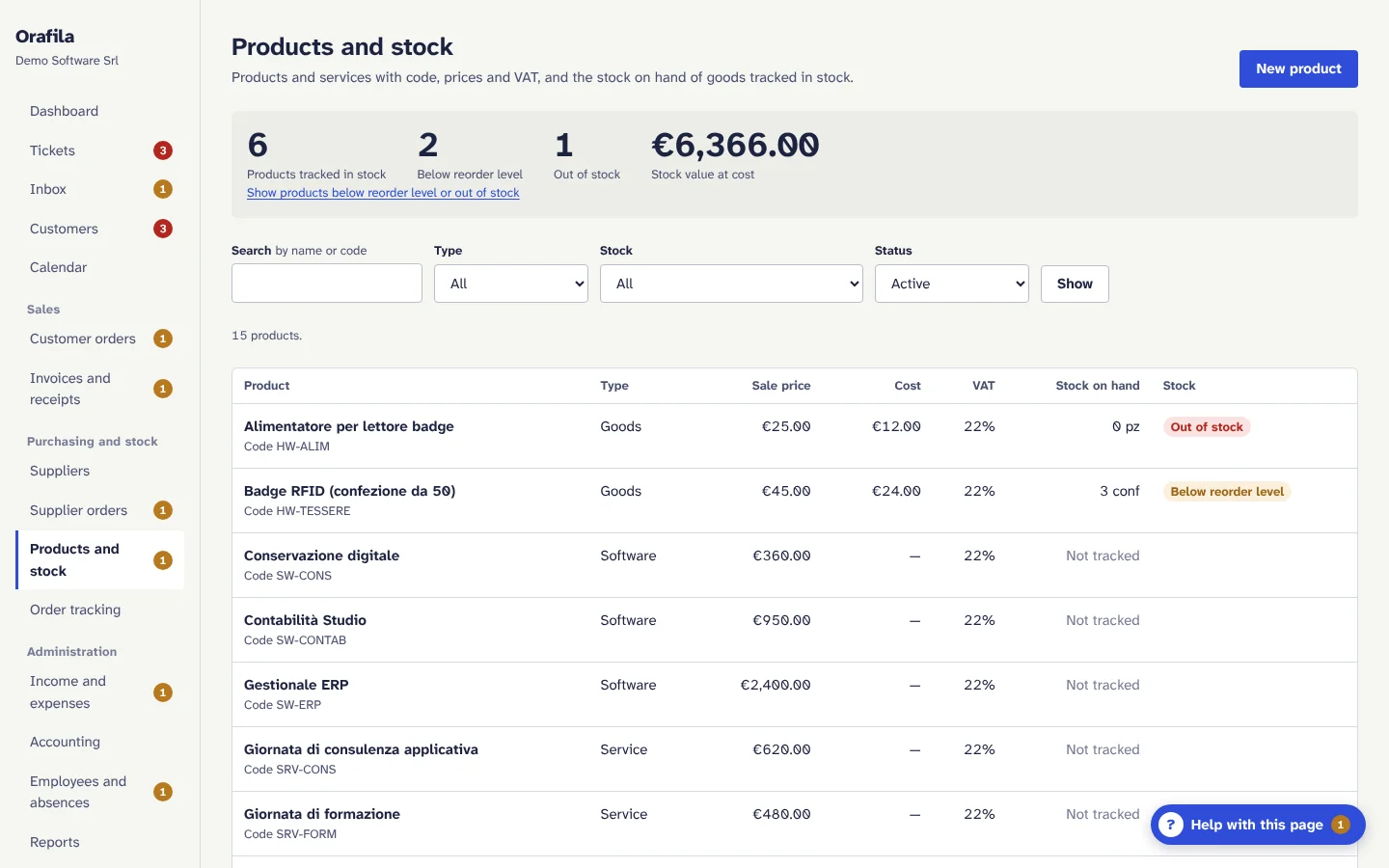
- Products of type Goods, Service or Software, with code, unit of measure, sale price, purchase cost, VAT rate and usual supplier; suggested in the lines of orders and invoices.
- Goods tracked in stock have their stock on hand calculated from the movements: opening stock, deliveries from suppliers, shipments to customers, adjustments (with a required reason), returns. Two shipments at the same moment cannot use the same goods.
- Reorder level: the product shows as “Below reorder level” and whoever manages the stock receives an e-mail.
- Stock value at purchase cost; products out of stock and to reorder at a glance.
- Deactivation for products with a history; deletion only for those never used.
14. Order tracking
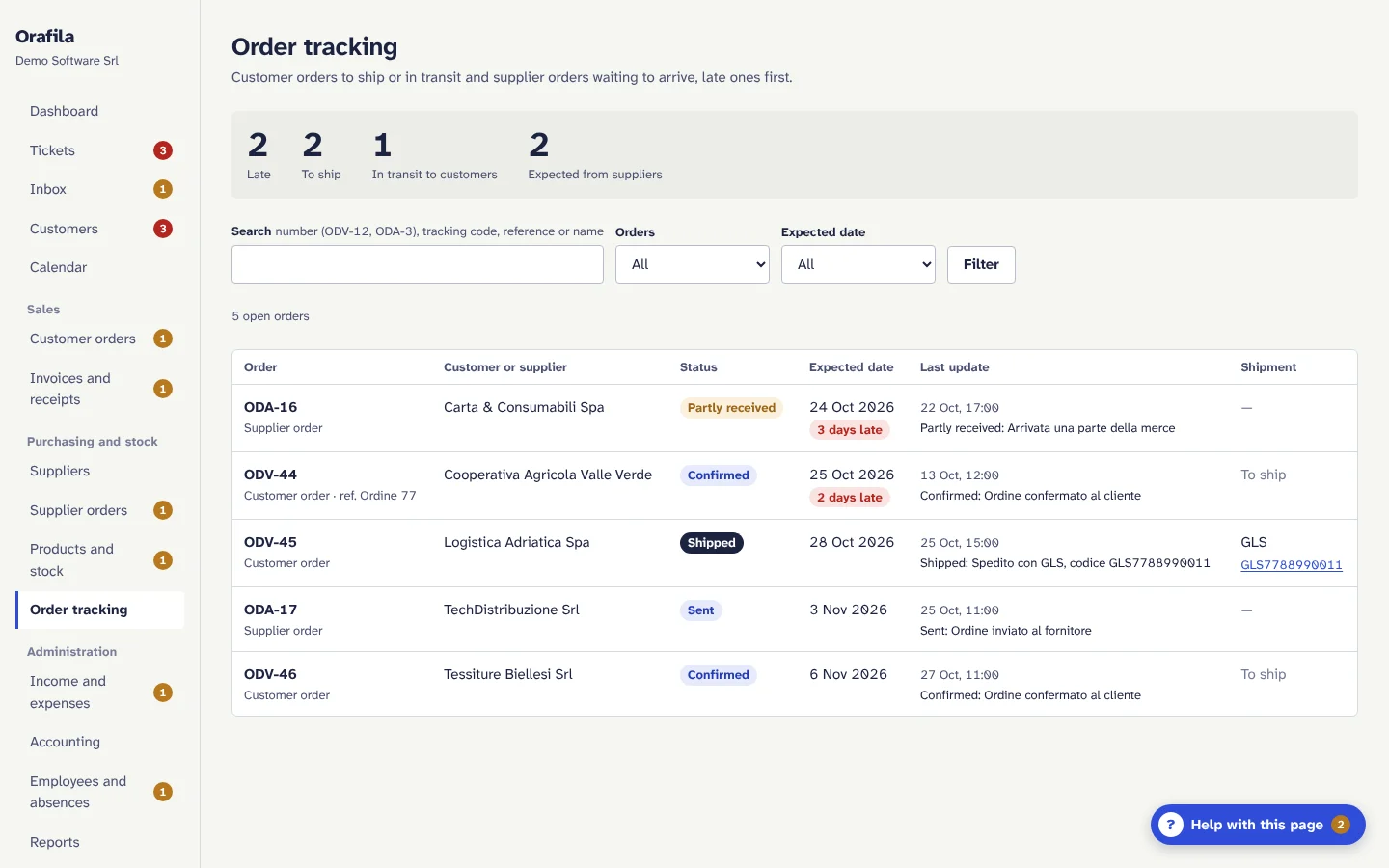
- A single view of open orders: customer orders (confirmed or shipped) and supplier orders (sent or partly received).
- At the top, the figures Late, To ship, In transit to customers, Expected from suppliers; in the list, late orders first, oldest first, with the last update and the link to the carrier.
- Search by number, tracking code, reference or name.
15. Income and expenses
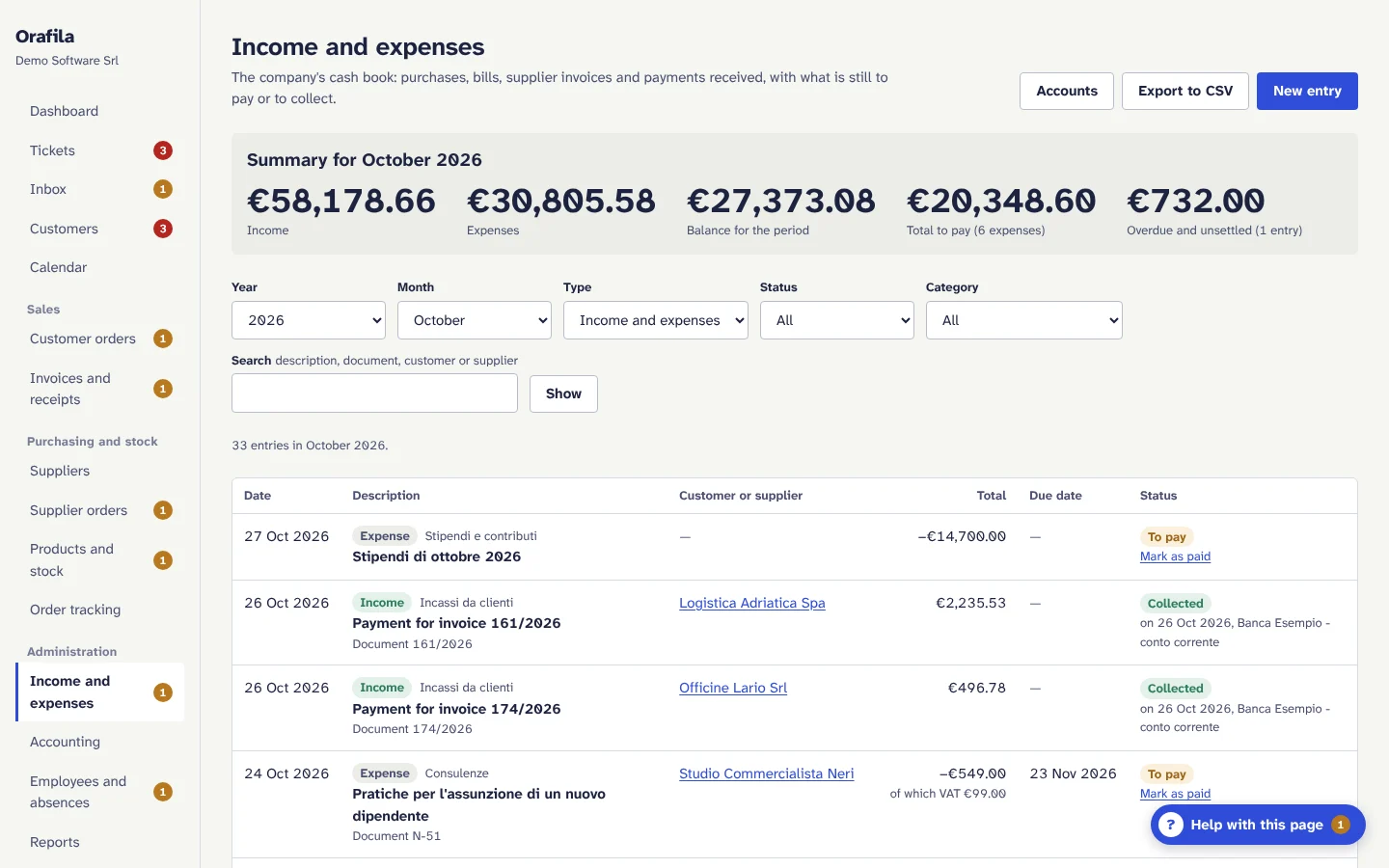
- Cash book: expenses, bills, supplier invoices and income that does not come from an Orafila invoice. Payments of issued invoices appear automatically.
- Total amount including VAT with the exact breakdown of net amount and VAT by rate (or VAT entered by hand if the document shows a different amount), category, supplier or customer, document number, due date.
- To pay / Overdue, “Mark as paid” with date and account.
- Accounts (bank account, cash, card, other) with opening balance and balance today.
- CSV export of the period, ready for Excel and for your accountant.
16. Accounting
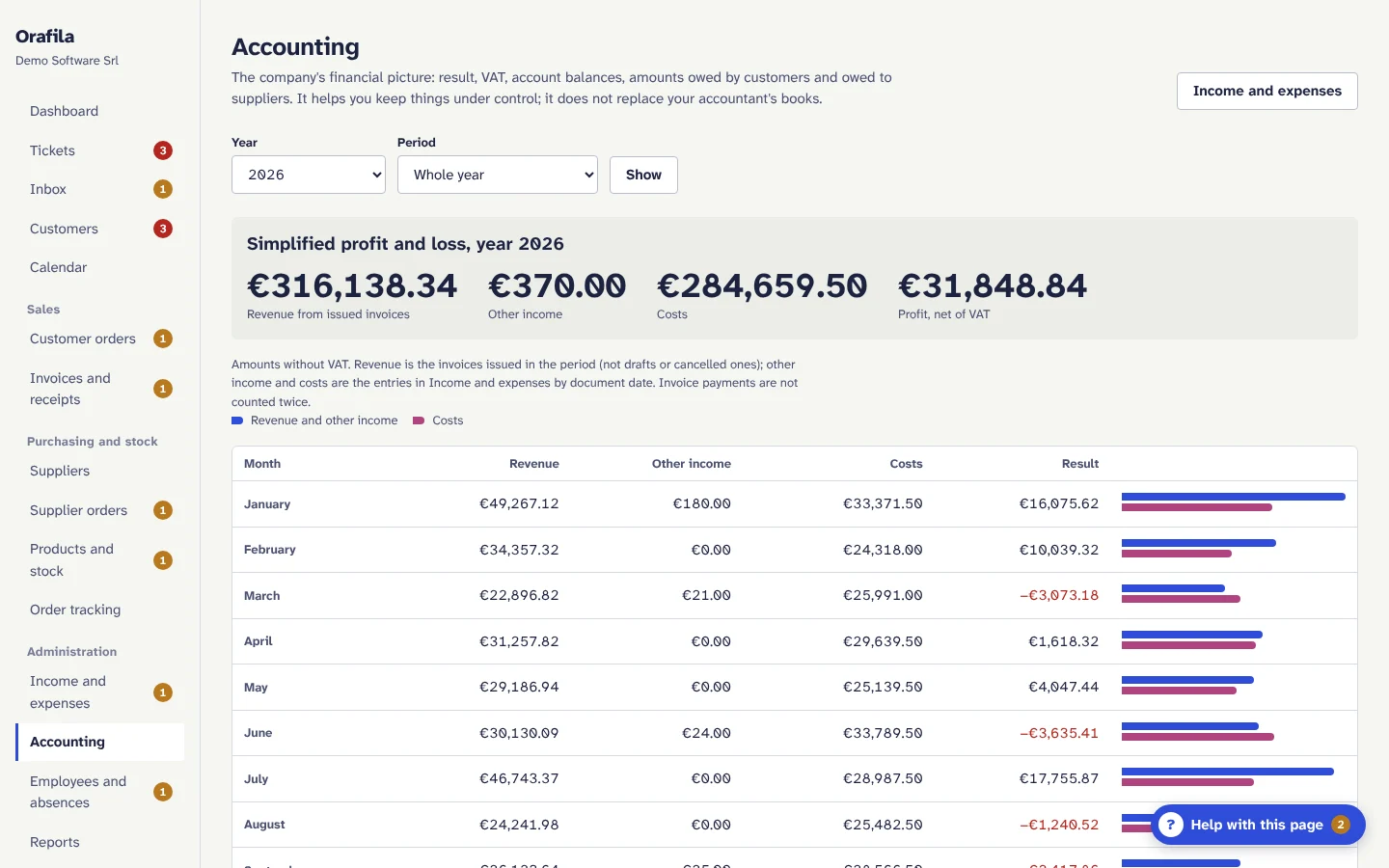
- Simplified profit and loss by year or quarter, month by month: revenue from issued invoices, other income, costs, result, all excluding VAT.
- VAT summary by quarter: output VAT, input VAT and balance. It is indicative for the standard VAT scheme: it does not take into account split payment, reverse charge, pro rata, advance payments or credits from previous years.
- Account balances, amounts owed by customers and amounts owed to suppliers by age of the due date.
- It is a read-only page: it does not replace your accountant's books.
17. Employees and absences
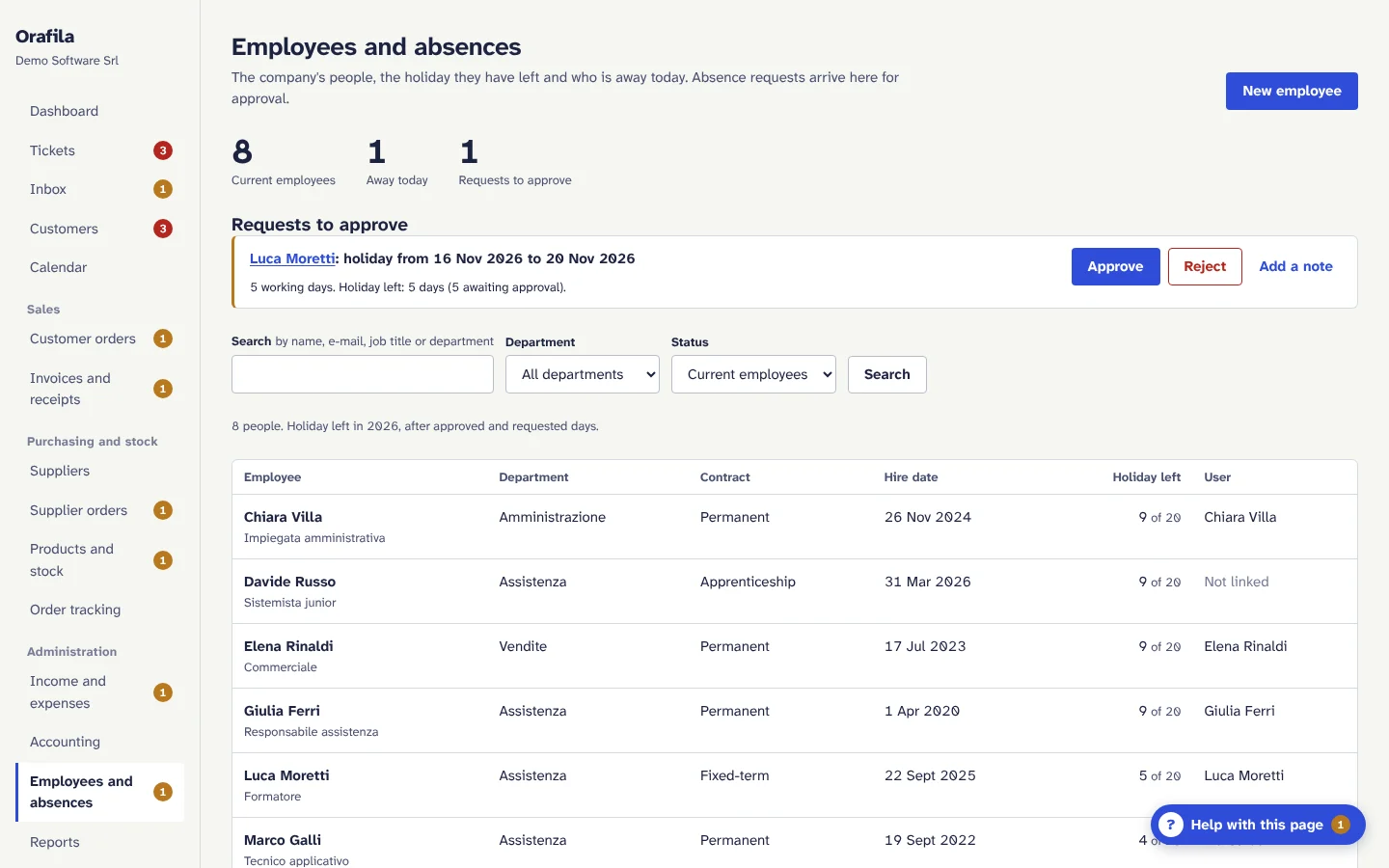
- Employee record: job title, department, contract type, weekly hours, hire date and end of employment, holiday days per year (20 unless changed), hourly cost (visible only to people who manage employees), linked Orafila user.
- Absences: holiday, time off by the hour, sick leave (dates only, never diagnoses or certificates), training, other. Overlaps are refused (two periods of time off by the hour on the same day are allowed).
- Holiday balance in working days of the company calendar (excluding weekends, holidays and closures): allowance, taken or approved, pending, left.
- Requests from “My absences” or from the calendar, with approval or rejection and a note, notified by e-mail. Requests from people who manage staff are decided by someone else.
18. Reports
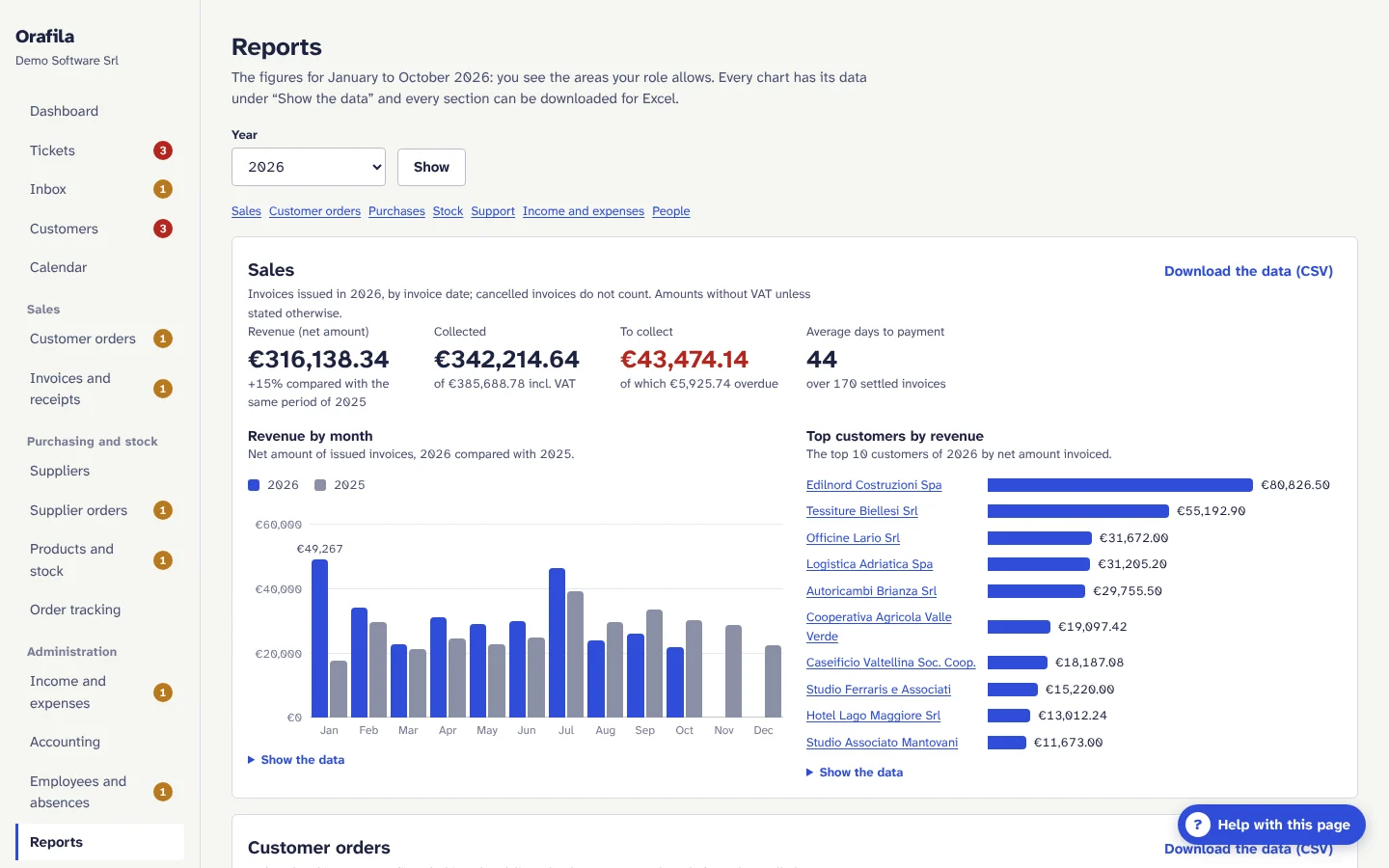
- By year: Sales (revenue by month compared with the year before, top customers, collected and overdue, average days to collect), Customer orders, Purchases, Stock, Support (tickets opened and resolved, hours worked), Income and expenses, People (headcount, hires, absences).
- Charts generated on the server with the values in a table (“Show the data”), also accessible from the keyboard and with a screen reader.
- Each section can be downloaded as CSV for Excel, in the format of the reader's language (in English: comma separator, decimal point).
- Each person sees only the sections for the areas their role can consult.
19. Assistant and help on every page
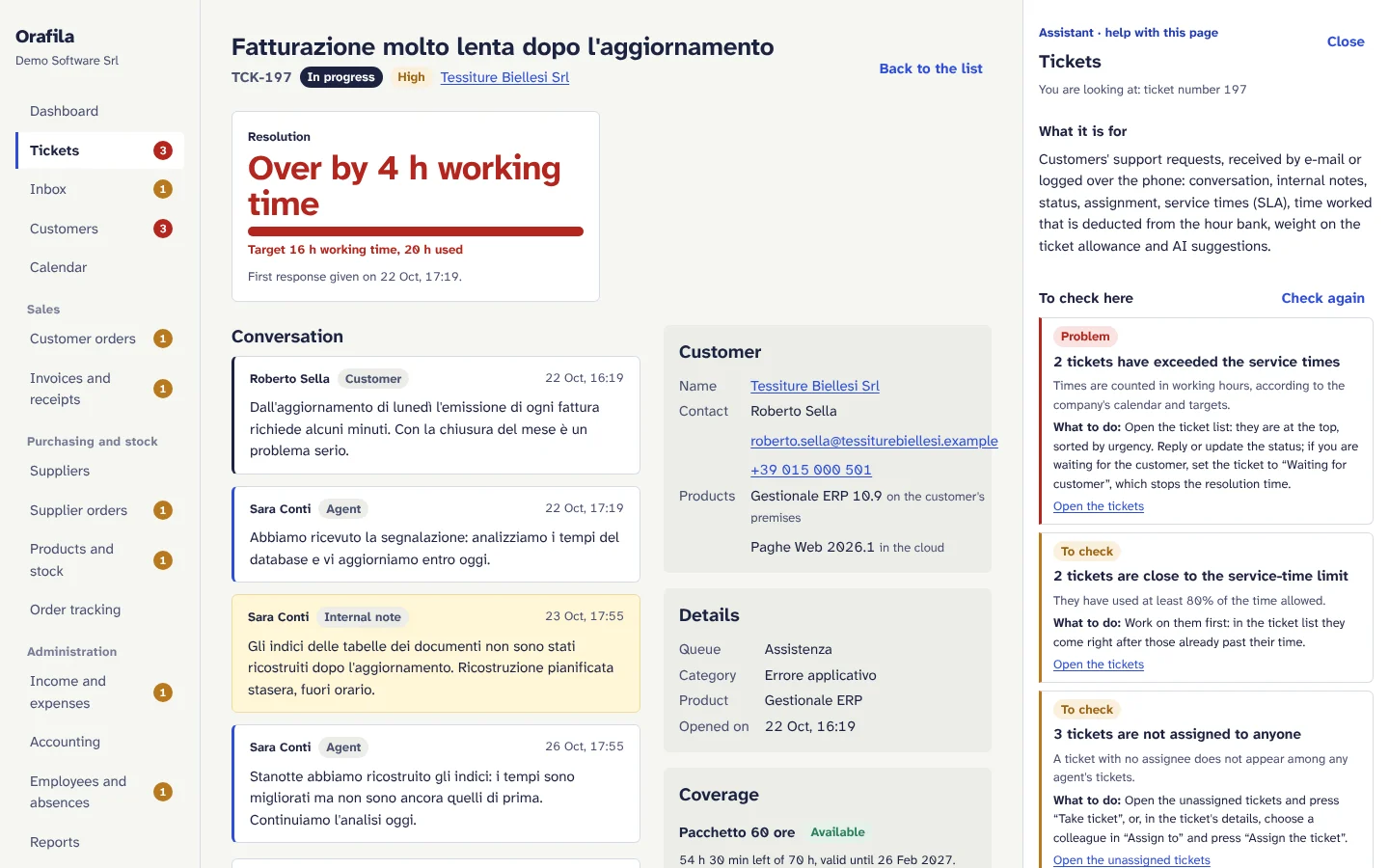
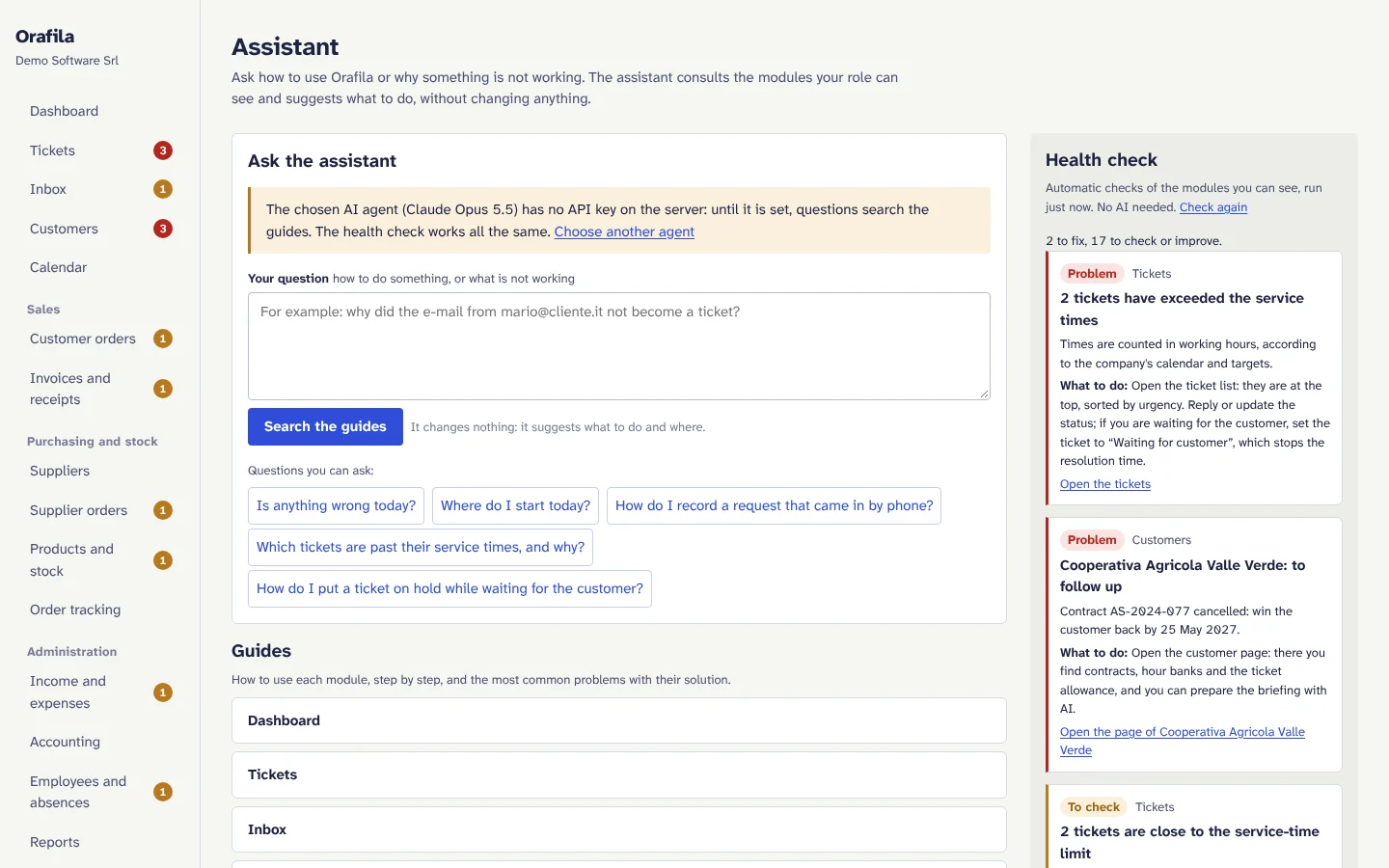
- “Help with this page”: on every page it opens the assistant beside your work, with What it is for (the section), To check here (what the automatic checks found, with what to do and the link), Ask the assistant (suggested questions, one click away) and the How to / Common problems guide.
- Assistant page: you ask how to do something or why something is not working; the assistant looks at the modules the person's role can see and suggests the steps with the link to the page where to take them. It changes nothing.
- Health check, also without AI: mailboxes that do not read or do not send, mail worker stopped, e-mails to sort, tickets past their time limit or without an assignee, customers to follow up, users locked out or with an expired invitation, stock, late orders, overdue invoices, expenses to pay, absence requests, notifications not going out, AI not set up or with the budget used up.
- Without AI, questions search the guides. Details in Artificial intelligence.
20. Settings
Reserved for people who manage settings and users (administrators).
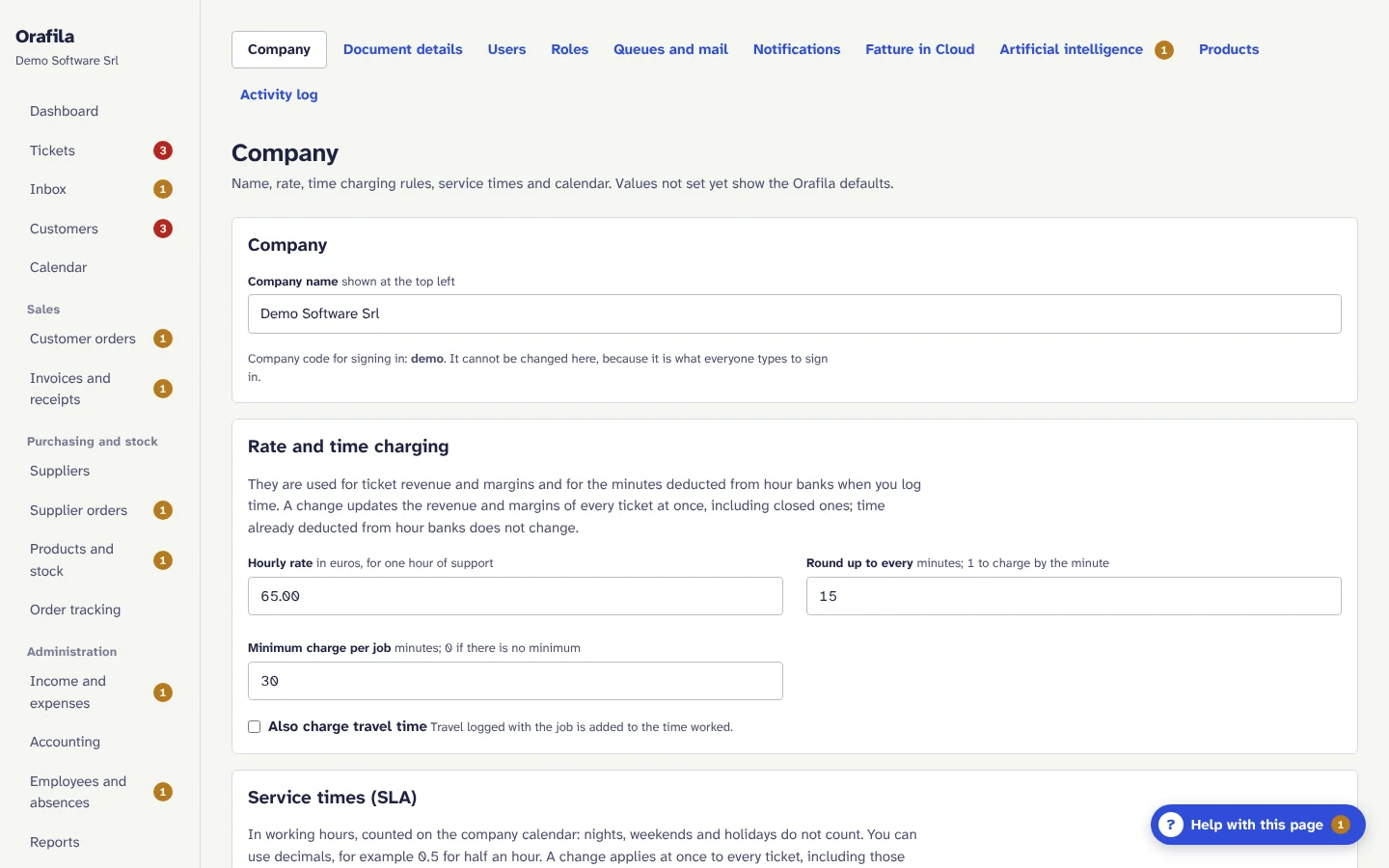
| Page | What is set |
|---|---|
| Company | Name, hourly rate (default €60 an hour), rounding and minimum charge for time, billable travel, service times by priority, ticket categories, days to reopen a closed ticket, company closures, AI on or off |
| Document details | Company name, VAT number, tax code, registered address, contact details, PEC, IBAN and bank, suggested payment days, invoice footer notes, document language; letterhead preview |
| Users | Invitations, roles, skills (the ticket categories each person handles, used by AI triage), language, unlocking, resetting two-step verification or access, suspension and reactivation. The company always keeps at least one active administrator and nobody can suspend themselves |
| Roles | Seven default roles and custom roles with 23 permissions grouped by area |
| Queues and mail | Support queues with ticket prefix and acknowledgement of receipt; IMAP/SMTP mailbox of each queue with “Test the connection”; e-mails not sent |
| Notifications | Mailbox that alerts and documents are sent from; reorder level and absence alerts; test e-mail; recently sent |
| Fatture in Cloud | Token, company, numbering series (sezionale), exemption code (natura) for 0% VAT, “Other” payment, automatic creation on issue |
| Artificial intelligence | Main agent and agent per feature, monthly budget, stop when the budget is used up, credit with each provider, spend by agent and feature |
| Products | Catalogue of the products installed at customers' premises and named on tickets |
| Activity log | Who did what and when, with filters; cannot be changed |
Activity log
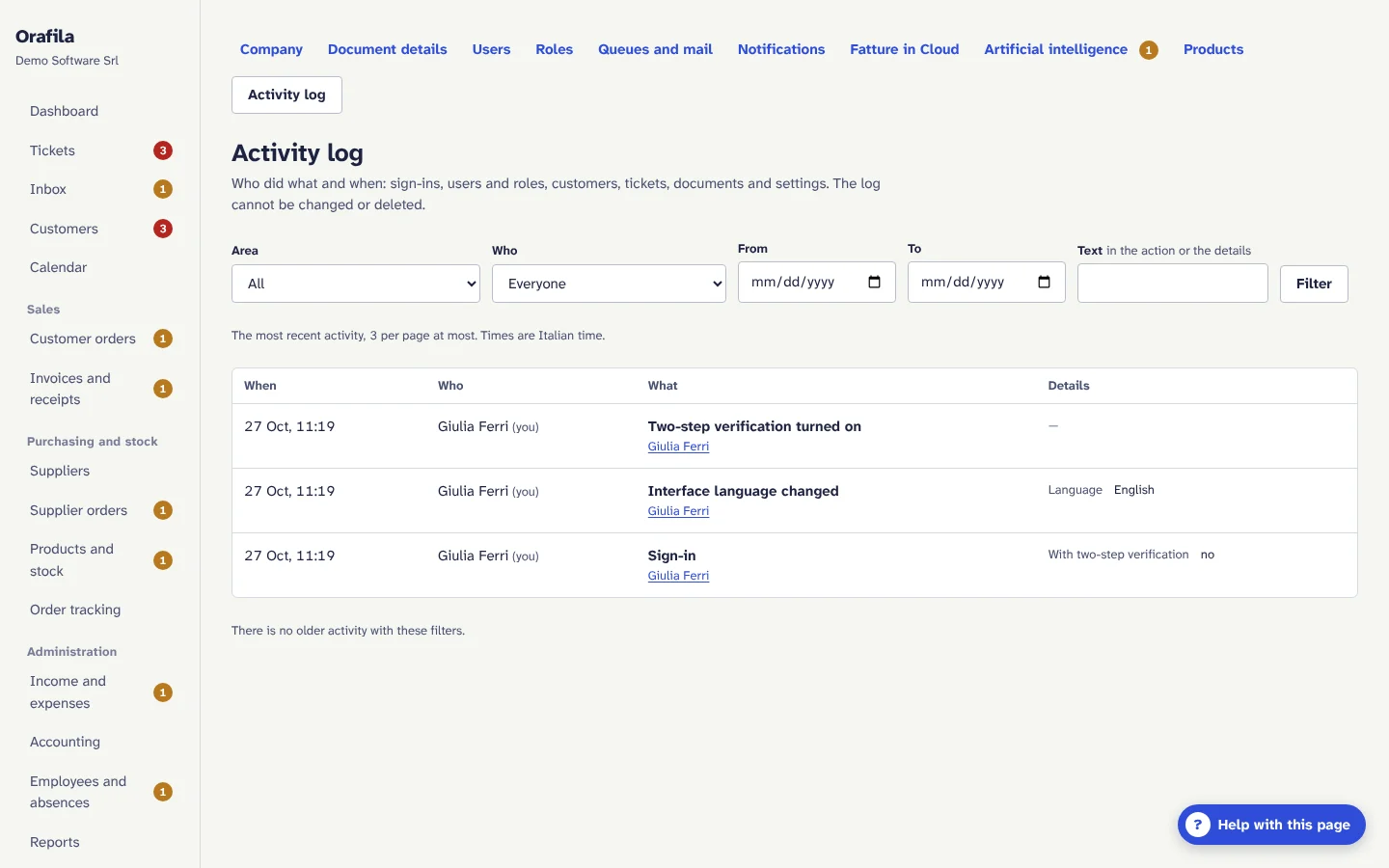
It records successful and failed sign-ins, password changes, users and roles, customers and contracts, tickets, products and stock, documents and settings, with date and time, author, action, details and a link to the record. It cannot be changed or deleted and never contains passwords, codes or other secrets.
21. E-mail notifications and PDF documents
- Invoices, payment reminders, receipts, order confirmations, shipping notices, supplier orders, reorder level alerts and decisions on absences are sent from the mailbox of the queue chosen in Settings › Notifications, with new attempts in case of errors and the headers that prevent automatic replies.
- Customers' replies to these e-mails arrive in the queue's mailbox and become tickets like the others.
- The PDFs (invoices, receipts, customer orders and supplier orders) are generated by the application, without external services, with the letterhead taken from Document details.
- Notifications to staff arrive in each person's language; documents and e-mails to customers and suppliers in the company's document language.
22. Languages
- Italian and English (British) throughout the application: pages, messages, guides, the assistant's answers, e-mails and PDFs.
- Everyone chooses their interface language with the button at the bottom of the menu (also on the sign-in pages); the choice is saved.
- Amounts and dates follow the language (1.234,56 € / €1,234.56).
- The company's document language for PDFs, e-mails to customers and suppliers and notes written by the app in the history.
- Data written by people (notes, replies, names of roles and queues) stays as it was written.